
Tools#
The Editor tab also has some extra Tools to help you to manage your BIDS dataset.
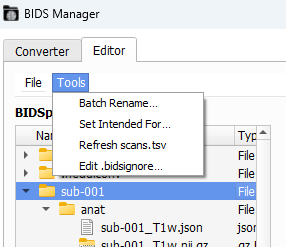
Batch Rename#
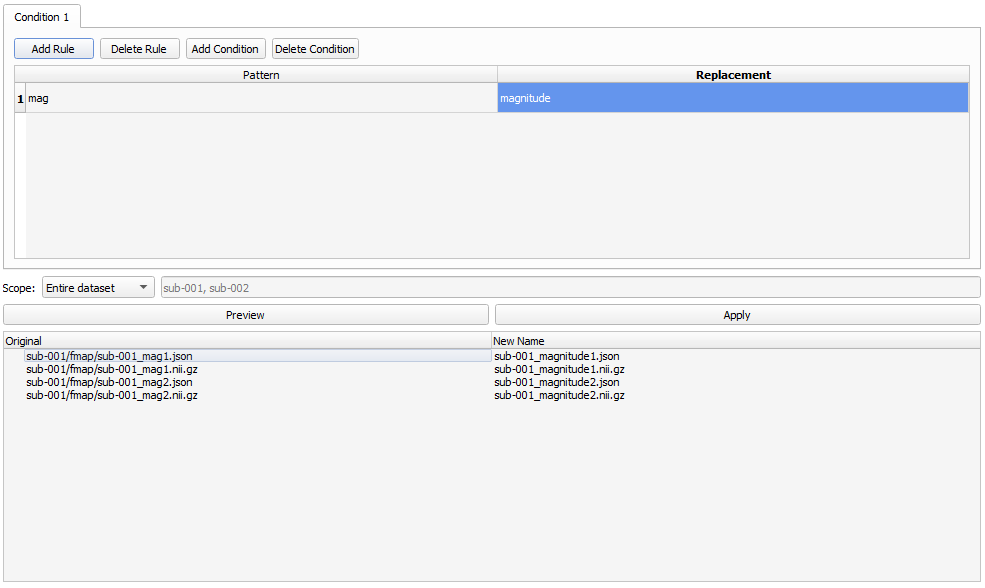
Use batch rules to rename files in a batch.
Click on
Add Ruleto create a newPatternandReplacementpair.Choose the
Scope: Entire dataset or Selected subjects.Click
Previewto see the original name (left) and the new name (right).Applyonce you’re satisfied.
Warning
Your renamed files might not be BIDS-compliant!
Set Intended For#
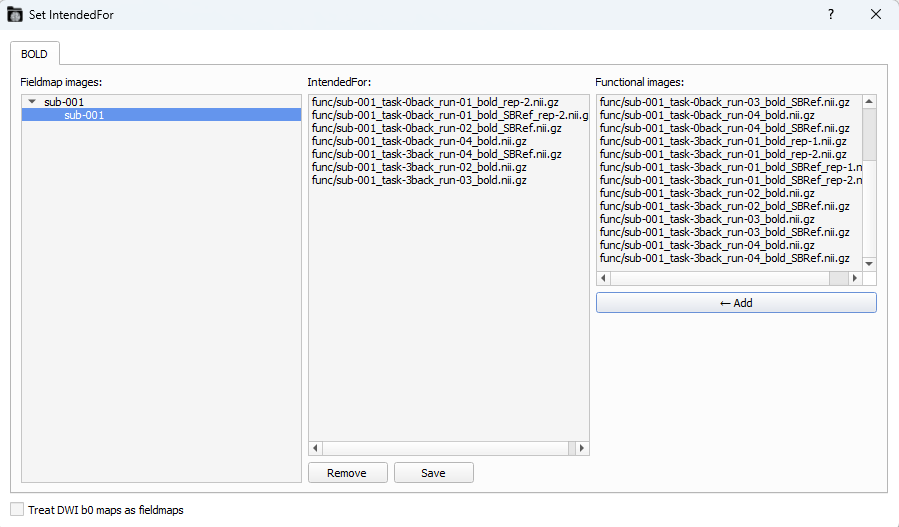
Writes the chosen functional images image path in the IntendedFor field of the field map’s json files
Fieldmap images(left-window): Choose the subjects whose fieldmap images you want to correct.Functional images(right-window): The list shows all available functional images. Select one or more and click onAdd.If you add a functional image by error, click on the functional image in the
IntendedForwindow and click onRemove.
Click
Saveto apply your selection. A pop-up will confirm you thatIntendedForwas updated.
Refresh Scans.tsv#
Re-scans the loaded BIDS dataset and updates participants’ sub-XXX_scans.tsv in case something got erased or added to the converted dataset.
Edit .bidsignore#
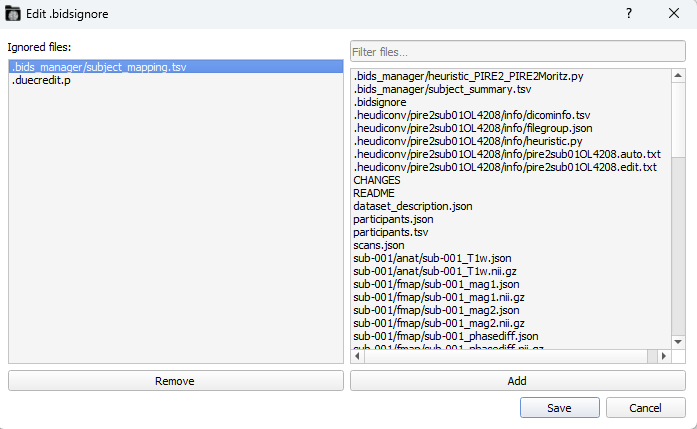
If you don’t like some files, you can add them to the .bidsignore, so some BIDS-compliant analysis won’t include, such as MEGqc or fMRIPrep. It also has a files filter.
Next section!#
In the next section we’ll explore how to see your fMRI data in a 3D view.