
Start
Install BIDS Manager
One installer per system puts BIDS Manager and every converter it uses in one folder of your home directory, with a launcher. If you already manage Python environments, install it from PyPI instead.
Which way
- macOS installer For a Mac with Apple silicon (M1 and later). Download, double-click, confirm.
- Windows installer For a 64-bit Intel or AMD PC with Windows 10 or 11.
- Linux installer For an x86_64 PC; run it from a terminal.
- pip, uv or conda For a Mac with an Intel processor, ARM Windows or Linux, and anyone who manages their own Python 3.10 to 3.14.
You need about 2.5 GB of free disk space and a network connection while installing. Any graphics card works; the 3-D view of the image viewer needs OpenGL 3.3, which every recent computer has.
What the installer does
The three installers do the same five things. Choose your system to read its details:
- 1
Check
Looks for about 2.5 GB of free disk space and for a connection to PyPI, and warns if either is missing. If BIDS Manager is already installed, asks what to do (see Upgrade, below). Then lists what it will do and asks you to confirm.
Looks for about 2.5 GB of free disk space and for a connection to PyPI, and warns if either is missing. If BIDS Manager is already installed, asks what to do (see Upgrade, below). Then lists what it will do and asks you to confirm.
Looks for about 2.5 GB of free disk space and for a connection to PyPI, and warns if either is missing. If BIDS Manager is already installed, asks what to do (see Upgrade, below). Then lists what it will do and asks you to confirm.
- 2
A Python of its own
Downloads a portable Python 3.10 for Apple silicon (about 60 MB) into ~/BIDS-Manager/.
Downloads an embeddable Python 3.10 (about 12 MB) into %USERPROFILE%\BIDS-Manager, and gives it pip.
Downloads a portable Python 3.10 for x86_64 (about 65 MB) into ~/BIDS-Manager/.
- 3
An environment
Creates an isolated environment inside that folder, so nothing it installs touches the rest of your computer's Python.
Creates an isolated environment inside that folder, so nothing it installs touches the rest of your computer's Python.
Creates an isolated environment inside that folder, so nothing it installs touches the rest of your computer's Python.
- 4
BIDS Manager
Installs bids-manager from PyPI with everything it needs, dcm2niix and niimath included (about 1.5 GB). This is the long step.
Installs bids-manager from PyPI with everything it needs, dcm2niix and niimath included (about 1.5 GB). This is the long step. Then checks that the EyeLink reader loads, and if it does not, installs the Microsoft Visual C++ 2008 runtime it needs (Windows asks for permission).
Installs bids-manager from PyPI with everything it needs, dcm2niix and niimath included (about 1.5 GB). This is the long step.
- 5
A launcher
Builds ~/Applications/BIDS-Manager.app with the BIDS Manager icon, an uninstaller, and a Desktop shortcut.
Creates a Desktop shortcut and a Start Menu entry with the BIDS Manager icon, and an uninstaller.
Registers BIDS-Manager in the application menu with its icon, adds Desktop shortcuts and an uninstaller.
Nothing is installed outside that folder, except on Windows the Microsoft Visual C++ 2008 runtime the EyeLink reader may need, which Windows installs system-wide and the uninstaller leaves in place.
Run the installer
Step 2. Run the installer for your system
- Unzip the file and open the
MacOSfolder. - Double-click
install_BIDS_Manager.command. - macOS warns that the developer cannot be verified. Click Done, open System Settings > Privacy & Security, scroll to the security section and click Open Anyway, then double-click the script again.
- A Terminal window opens. Type
yand press Return when it asks to continue; allow a few minutes.
Prefer the terminal? Run ./install_BIDS_Manager.command in the folder: there is no Gatekeeper warning that way.
- Unzip the file and open the
Windowsfolder. - Double-click
install_BIDS_Manager.bat. - If SmartScreen says Windows protected your PC, click More info, then Run anyway.
- A console window opens. Type
yand press Enter when it asks to continue. If it needs the Visual C++ runtime for EyeLink files, Windows asks for permission; if that is refused, everything else works, and the installer says how to add it later.
-
Unzip the file and open a terminal in the
Linuxfolder. The installer needsunzipandwget(on Debian and Ubuntu:sudo apt install unzip wget). -
Make the script executable and run it, and answer
ywhen it asks to continue:Terminalchmod +x install_BIDS_Manager.sh ./install_BIDS_Manager.sh
On XFCE, Thunar does not run scripts on double-click; run it from the terminal.
Step 3. Open BIDS Manager
BIDS Manager is in ~/Applications as BIDS-Manager: open it from Launchpad, Spotlight or the Finder. Its output is written to ~/BIDS-Manager/bidsmgr.log.
Double-click the BIDS-Manager shortcut on the Desktop, or find it in the Start menu. It opens in a console window that shows its progress; keep that window open while you work.
Open BIDS-Manager from your application menu, or from the shortcut on the Desktop. It starts in a terminal, which shows its progress.
The first start can take longer than later ones. A working installation opens on the Home view:
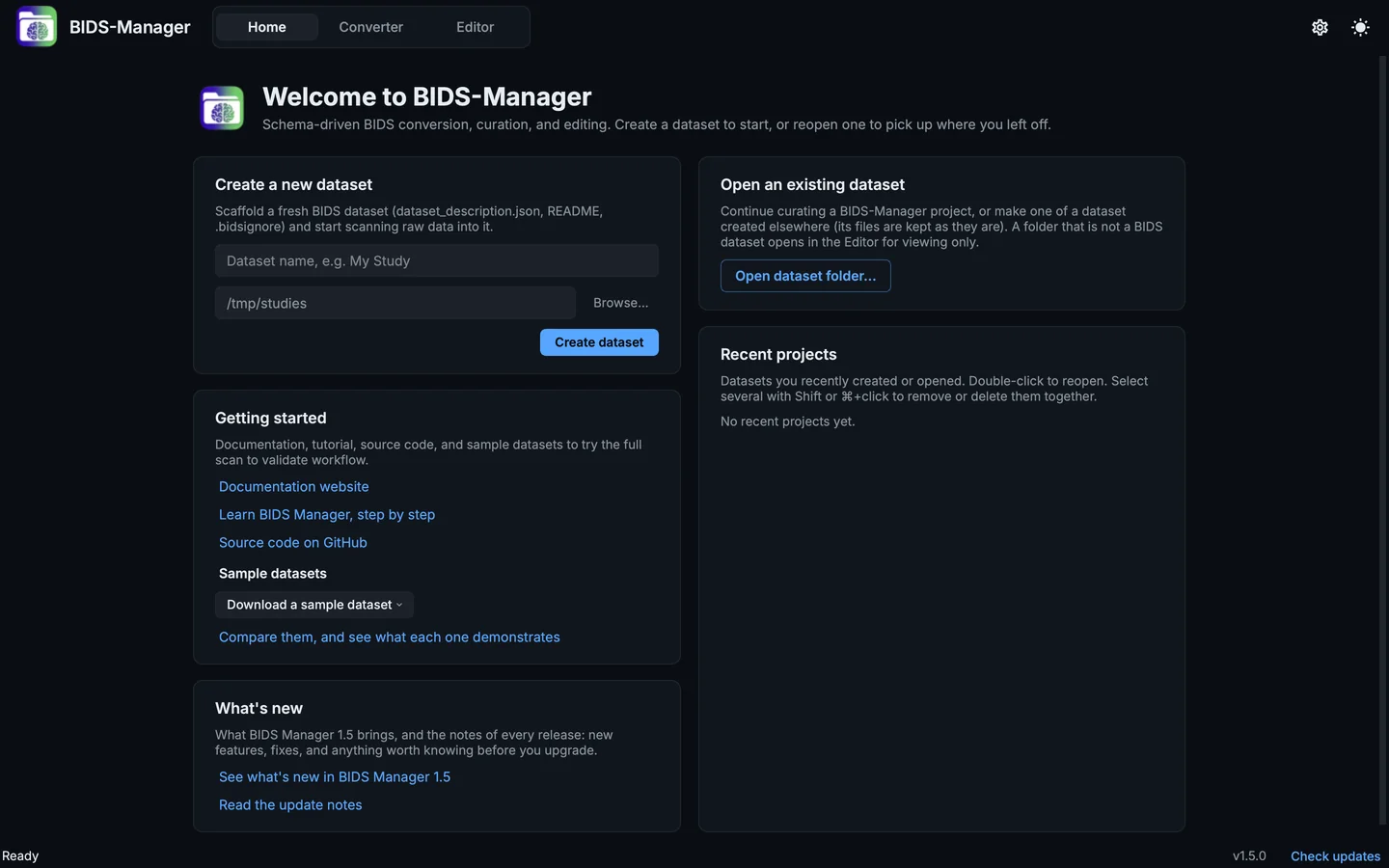
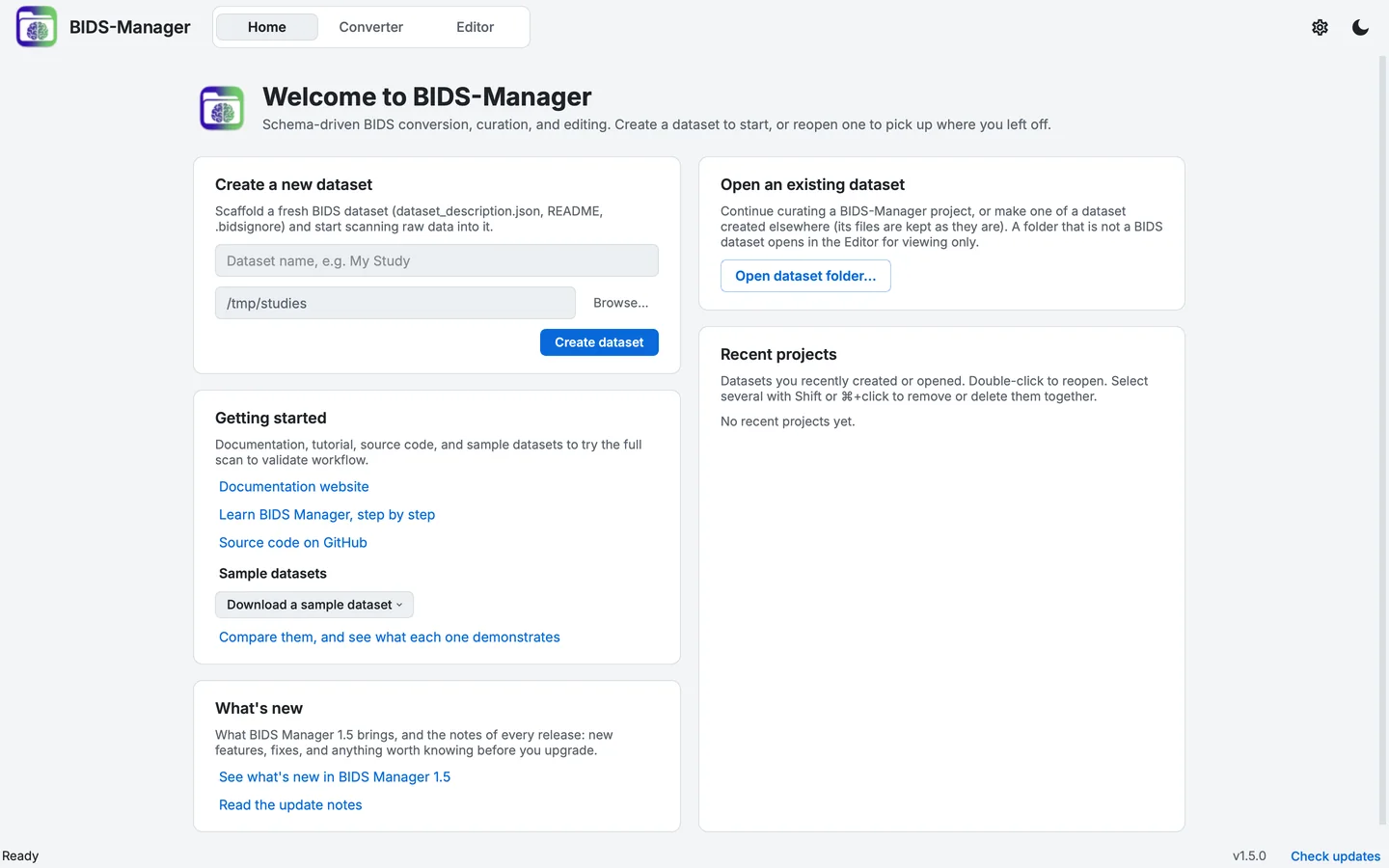
BIDS Manager on first launch.
- The header: the views, the project, Settings and the theme
- Home, Converter and Editor
- Create a new dataset
- Open an existing dataset
- Download a sample dataset
- What's new: this release, and the update notes
- Recent projects
- Settings
- Theme
- The status bar: messages, the version, Check updates
Where it is installed, and how to remove it
| System | Installed in | Remove with |
|---|---|---|
| macOS | ~/BIDS-Manager/ and ~/ |
~/ |
| Windows | %USERPROFILE%\BIDS-Manager\ |
the Uninstall BIDS-Manager shortcut, or uninstall_BIDS_Manager.bat in that folder |
| Linux | ~/BIDS-Manager/ |
the Uninstall BIDS-Manager menu entry, or ~/ |
The folder also holds install.log, the installer's own log. Your datasets and projects are not inside it, and removing BIDS Manager does not touch them.
Upgrade
Click Check updates at the right of the status bar: when a newer version is out, BIDS Manager offers to install it into the environment it runs in. From a terminal, activate the installer's environment (below) and run pip install --upgrade bids-manager.
Running the installer again finds the existing installation and asks: u to upgrade, r to reinstall from scratch, a to stop. In this version u keeps the version you have (Known issues); r installs the newest version from scratch, and your settings, kept outside the folder, stay.
Use the commands with an installer
The installer keeps BIDS Manager in its own environment, so a new terminal does not know the bidsmgr commands. Activate the environment first:
source ~/BIDS-Manager/env/bin/activate
bidsmgr-scan --help
In the Command Prompt:
> %USERPROFILE%\BIDS-Manager\env\Scripts\activate.bat
> bidsmgr-scan --help
In PowerShell:
> & "$env:USERPROFILE\BIDS-Manager\env\Scripts\Activate.ps1"
> bidsmgr-scan --help
source ~/BIDS-Manager/env/bin/activate
bidsmgr-scan --help
With pip, uv or conda
BIDS Manager is published on PyPI as bids-manager (in Python it is imported as bidsmgr). It needs Python 3.10 to 3.14, and brings dcm2niix and, on Python 3.10 to 3.13, niimath with it.
With uv, which fetches the Python it needs (uv venv --seed puts pip in the environment, which Check updates in BIDS Manager's status bar uses):
uv venv --seed ~/bidsmgr-env --python 3.12
source ~/bidsmgr-env/bin/activate
uv pip install bids-manager
bidsmgr
With the Python you have (check it with python3 --version):
python3 -m venv ~/bidsmgr-env
source ~/bidsmgr-env/bin/activate
pip install bids-manager
bidsmgr
With conda:
conda create -n bidsmgr python=3.12
conda activate bidsmgr
pip install bids-manager
bidsmgr
With uv, in PowerShell (uv venv --seed puts pip in the environment, which Check updates in BIDS Manager's status bar uses):
> uv venv --seed "$env:USERPROFILE\bidsmgr-env" --python 3.12
> & "$env:USERPROFILE\bidsmgr-env\Scripts\Activate.ps1"
> uv pip install bids-manager
> bidsmgr
With the Python you have (check it with py --version), in the Command Prompt:
> py -m venv %USERPROFILE%\bidsmgr-env
> %USERPROFILE%\bidsmgr-env\Scripts\activate.bat
> pip install bids-manager
> bidsmgr
With conda, in an Anaconda Prompt:
> conda create -n bidsmgr python=3.12
> conda activate bidsmgr
> pip install bids-manager
> bidsmgr
To read EyeLink .edf files, install the "Microsoft Visual C++ 2008 SP1 Redistributable (x64)" from Microsoft, which the installer would otherwise add. Everything else works without it.
With uv, which fetches the Python it needs (uv venv --seed puts pip in the environment, which Check updates in BIDS Manager's status bar uses):
uv venv --seed ~/bidsmgr-env --python 3.12
source ~/bidsmgr-env/bin/activate
uv pip install bids-manager
bidsmgr
With the Python you have (check it with python3 --version; on Debian and Ubuntu, sudo apt install python3-venv first):
python3 -m venv ~/bidsmgr-env
source ~/bidsmgr-env/bin/activate
pip install bids-manager
bidsmgr
With conda:
conda create -n bidsmgr python=3.12
conda activate bidsmgr
pip install bids-manager
bidsmgr
On a minimal system Qt may need libxcb-cursor0 (sudo apt install libxcb-cursor0).
To upgrade, activate the environment and run pip install --upgrade bids-manager (or uv pip install --upgrade bids-manager).
From the source
git clone https://github.com/ANCPLabOldenburg/BIDS-Manager.git
cd BIDS-Manager
python3 -m venv .venv && source .venv/bin/activate
pip install -e ".[dev]"
bidsmgr
-e installs it so that changes to the source take effect without reinstalling; [dev] adds the test tools.
What comes with it
| For | Engine |
|---|---|
| MRI, MR spectroscopy and PET DICOM to NIfTI | dcm2niix, program included |
| EEG and MEG | MNE-BIDS, over MNE-Python |
| PET ECAT images, PET metadata and blood data | nibabel and PET2BIDS |
| MRI physiological recordings | bidsphysio, built in |
| Eye tracking | eyelinkio |
| Defacing, skull stripping, quality-check registration | niimath, program included (Python 3.10 to 3.13) |
| Brain masks and tissue classes | brainchop (mindgrab, robust_tissue); its networks, about 1.5 MB, are downloaded the first time they are used |
| Names and validation | the BIDS schema and validator, built in |
If the installation fails
| What you see | What to do |
|---|---|
| The macOS script does nothing when double-clicked | Gatekeeper blocked it: follow step 2's Open Anyway, or run it from Terminal. |
| The Linux script stops at once | It needs unzip and wget; install them and run it again. |
pip says no version of bids-manager is available |
Your Python is older than 3.10 or newer than 3.14. Check with python3 --version; uv can fetch a suitable one. |
| The installer stops while downloading | A firewall or proxy blocked it. Read the end of install.log in the BIDS-Manager folder, and try again on another network. |
| BIDS Manager opens, then closes at once (Linux) | Qt cannot load its display plugin. Install libxcb-cursor0, then start it from a terminal to read the message. |
| EyeLink files cannot be read (Windows) | The Visual C++ 2008 runtime is missing; install it as above, or read an .asc export of the recording instead. |
| BIDS Manager opens but Deface... is greyed out | You are on Python 3.14; see the note above. |
More in Troubleshooting.