
Start
First launch
What BIDS Manager's graphical user interface (GUI) shows when it opens, how to move between its three views, and the settings worth setting before you start.
Open BIDS Manager
With an installer, open BIDS-Manager from your applications, as Install describes for each system. With pip, uv or conda, activate the environment and run:
bidsmgr
bidsmgr --project / opens straight into a project, and bidsmgr --theme light starts in another theme.
The GUI
The first time, BIDS Manager opens on Home. Hover the numbers to see each part.
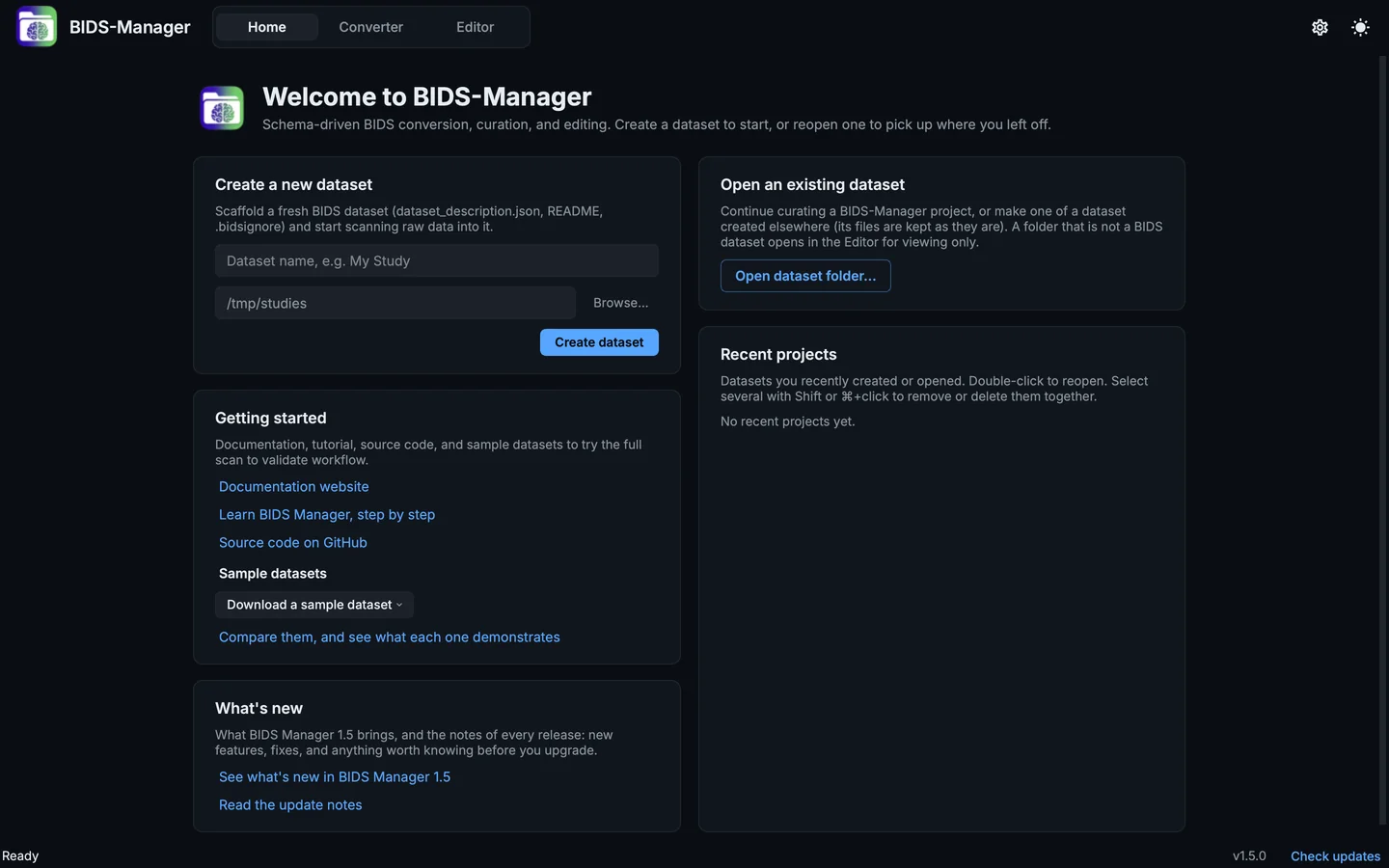
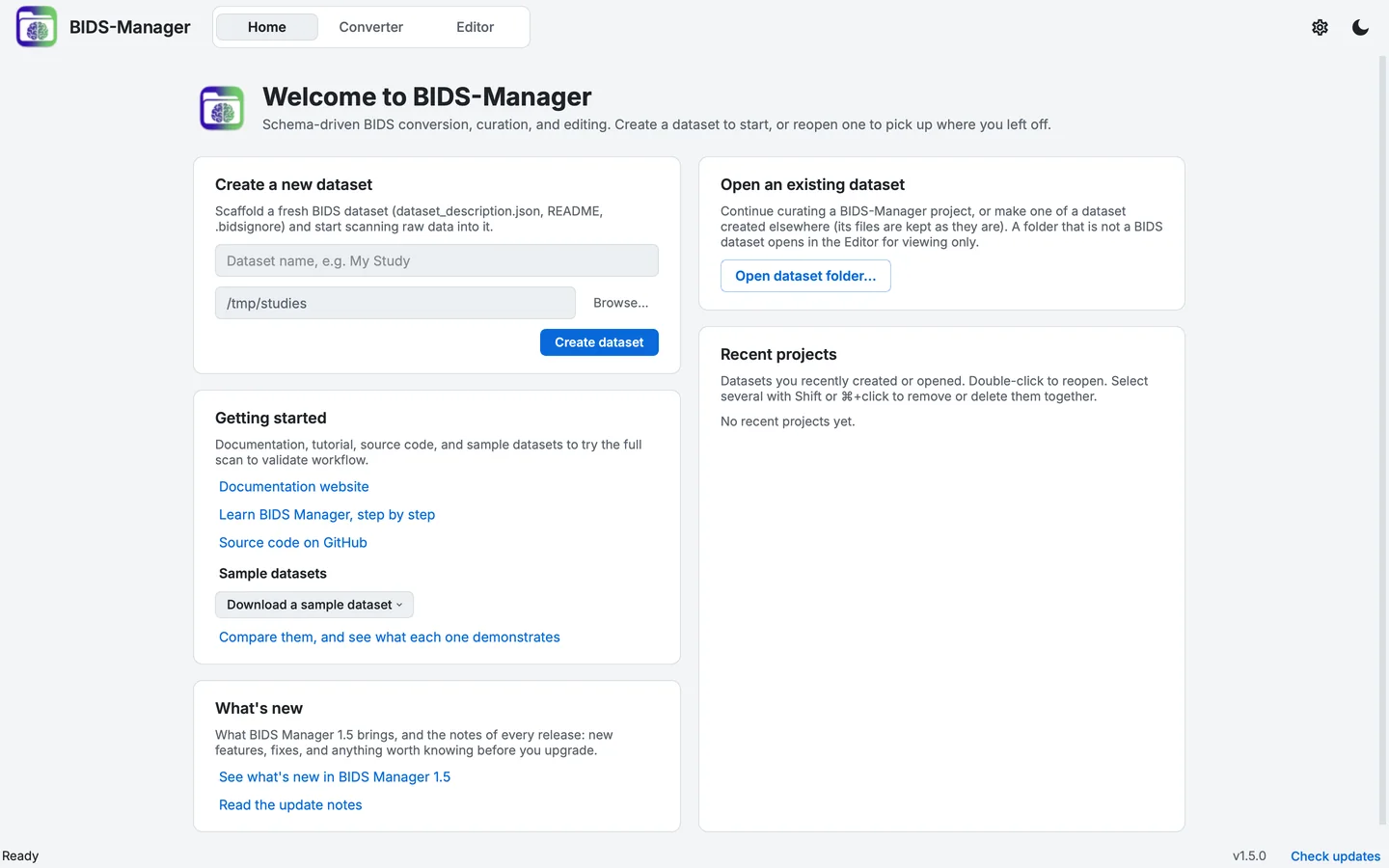
The GUI on first launch, on Home.
- The header: the views, the project, Settings and the theme
- Home, Converter and Editor
- Create a new dataset
- Open an existing dataset
- Download a sample dataset
- What's new: this release, and the update notes
- Recent projects
- Settings
- Theme
- The status bar: messages, the version, Check updates
The header runs across the top in every view. From left to right: the logo (click it for About: the version, the lab, the authors and the acknowledgements), the three views, and, once a project is open, the project switcher. At the right are Settings (the gear) and the theme menu (the sun or the moon).
The status bar at the bottom says what BIDS Manager is doing, and holds the version number and Check updates.
The three views
| View | What it is for |
|---|---|
| Home | Create a dataset, open one, reopen a recent project. Links to the documentation, a menu of sample datasets (for the course, take the multimodal sample from Sample data), and What's new: the announcement this release showed when it first opened, and the update notes. |
| Converter | Scan raw data, curate the scan table of what was found, set the metadata no file records, and convert. |
| Editor | Validate the converted dataset, edit its sidecars and tables, change its shape, view every file and check the image quality. |
The Converter and the Editor work on a project: a BIDS dataset folder that BIDS Manager keeps a history in. Until one is open, the Converter says so and its controls are off. Projects creates the first one.
Once a project is open, its name appears in the header. Click it to switch to a recent project.


The header, with a project open.
- The logo: opens About
- The three views
- The project switcher
- Settings
- The theme menu
Choose a theme
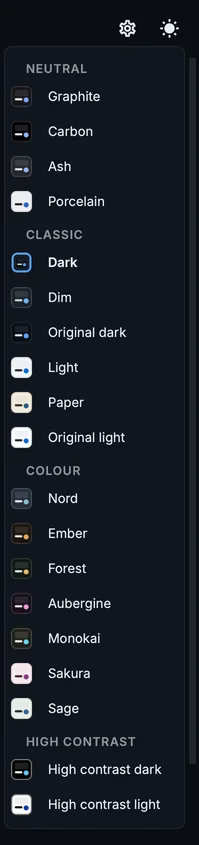
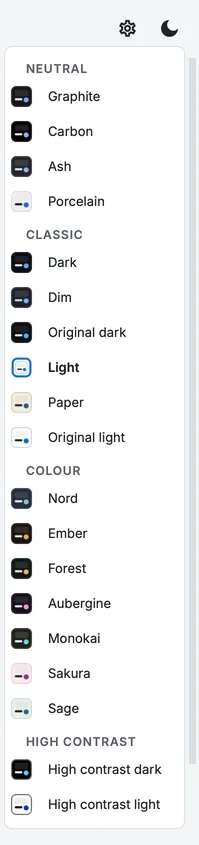
The theme menu.
Click the sun or the moon at the right of the header. The menu lists every theme in four groups, each with a swatch of its colours, and marks the current one. The choice applies at once and is remembered.
Settings > Display offers the same list, and the changes you can make to any theme.
The figures on this site show Dark and Light, and follow the theme of this site: switch it with the button at the top right of this page.
Neutral
- Graphite Neutral dark grey with no colour cast.
- Carbon Neutral near-black on a black canvas.
- Ash A lighter neutral charcoal.
- Porcelain White cards on a pale grey canvas, no tint.
Classic
- Dark Near-black with a blue cast.
- Dim A softer blue-grey dark for long sessions.
- Original dark The first dark theme, as it was before the restyle.
- Light White cards on a cool grey canvas.
- Paper Cream cards on a warm sand canvas.
- Original light The first light theme: a white canvas with pale grey cards.
Colour
- Nord Cool blue-grey with frost accents.
- Ember Warm charcoal with an amber accent.
- Forest Deep green-grey with a golden accent.
- Aubergine Deep plum with an orchid accent.
- Monokai The classic editor palette on warm olive-black.
- Sakura Blush cards with a plum accent.
- Sage Pale green-grey with a slate-blue accent.
High contrast
- High contrast dark Black and white with strong borders.
- High contrast light White and black with strong borders.
Settings
Click the gear in the header. The pages are listed down the left; every change applies when you click Save, and Restore Defaults puts back what BIDS Manager starts with. Each page is described in Settings.
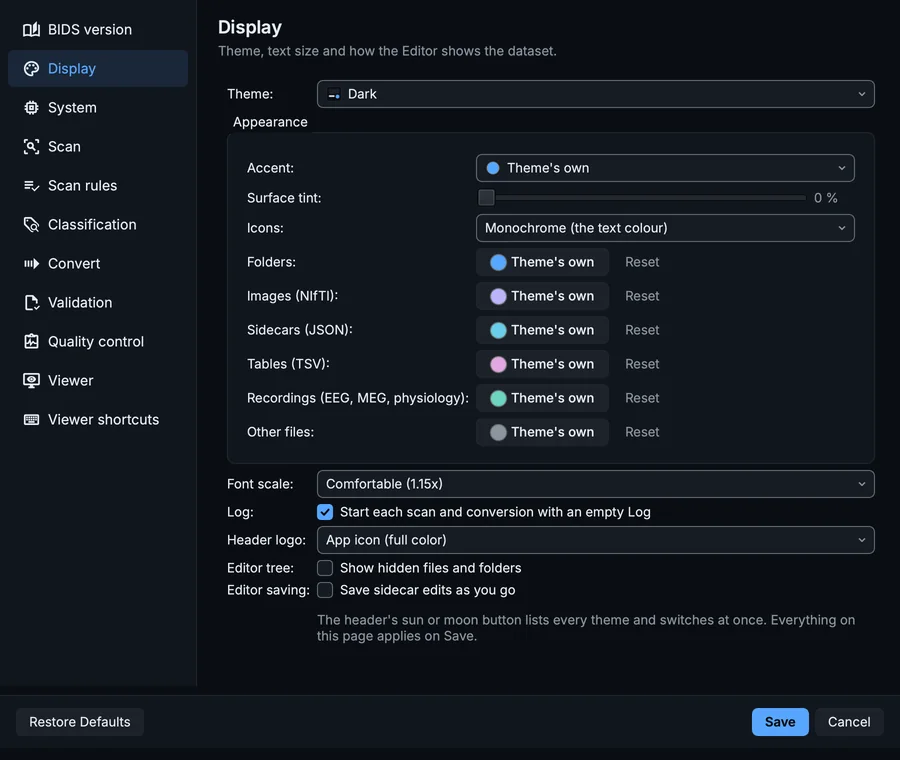
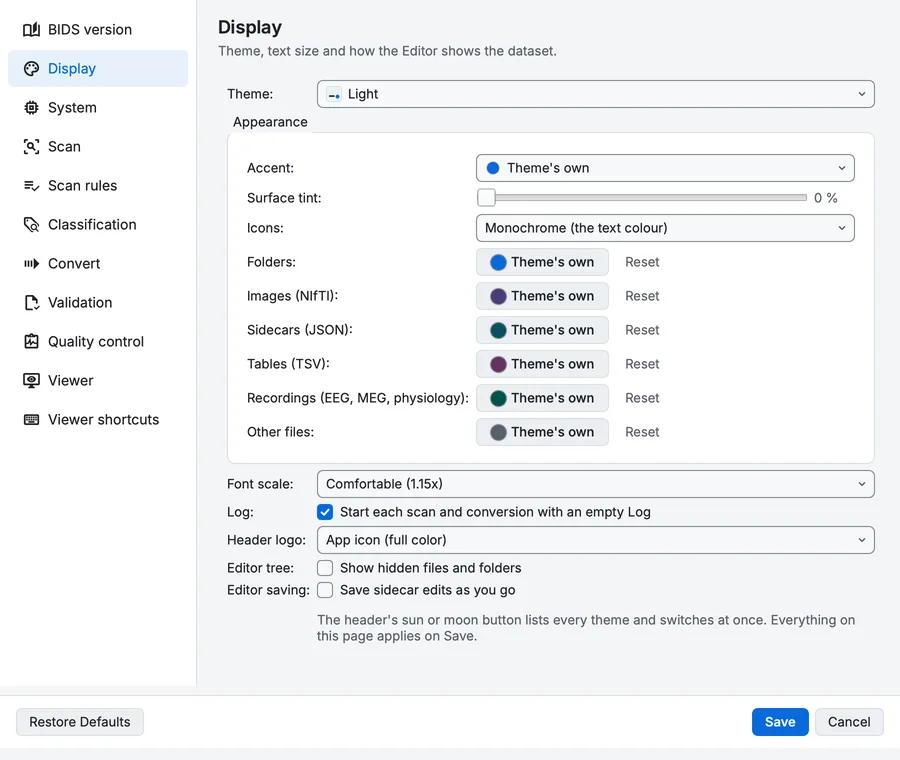
Settings, Display page.
Two settings on the Display page are worth setting now:
- Font scale makes all text larger or smaller, from Compact (0.85x) to Extra large (1.50x). The figures on this site are taken at Comfortable (1.15x).
- Appearance changes the theme you chose: its accent colour, a tint of the surfaces, the colour of the icons, and the colours of each kind of file in the file trees. A colour you pick yourself is kept separately for dark and for light themes, so one choice does not make the other unreadable.
Where BIDS Manager keeps things
| What | Where |
|---|---|
| Your settings and recent projects | macOS: ~/. Windows: the registry, under HKEY_. Linux: ~/.config/bidsmgr/bidsmgr.conf. |
| A project's history, scan tables and logs | inside the dataset, in its .bidsmgr/ folder (The project folder) |
| Logs of commands run outside a project | ~/.bidsmgr/logs/ (on Windows, %USERPROFILE%\.bidsmgr\logs\) |
Removing BIDS Manager does not remove the settings or touch your datasets.
Updates
A few seconds after it opens, BIDS Manager asks PyPI whether a newer version exists. If one does, it says so and offers What changed (the release notes on this site), Yes (close, update and reopen) and No. Nothing about your data is sent. Check updates in the status bar asks again at any time.
The check is skipped when BIDS Manager runs from a source checkout. To turn it off everywhere, for example on a computer without internet access, set the environment variable BIDSMGR_NO_UPDATE_CHECK=1.
Next
Download a sample dataset from Sample data, then follow the Quick start, or begin the course with BIDS in ten minutes.