
Learn · Chapter 2 of 15
Projects
Create the project the course works in. A project is a BIDS dataset folder that BIDS Manager manages, so it keeps every scan, every edit and every log of that dataset inside it.
What a project is
In BIDS Manager everything happens inside a project: the folder of one BIDS dataset. The Converter writes into it and nowhere else, and the Editor shows it. Besides the dataset's own files, the project holds a hidden folder, .bidsmgr/, where BIDS Manager keeps what it needs to resume your work: the scans you made, the edits to each scan's table (which you can undo), the logs, and a record of every change made in the Editor, with the files as they were.
You create a project once per dataset. Scanning raw data a second time (another participant, another day of recording) adds to the same project.
Create the project
Step 1. Type a name for the dataset
On Home, in Create a new dataset, type multimodal_study in the name field. The name becomes the folder's name and the dataset's Name in dataset_description.json.
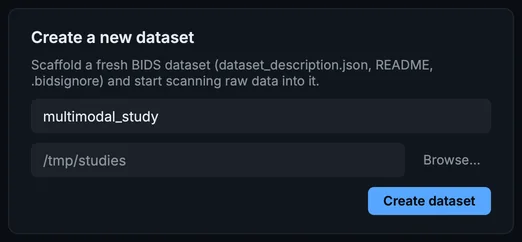
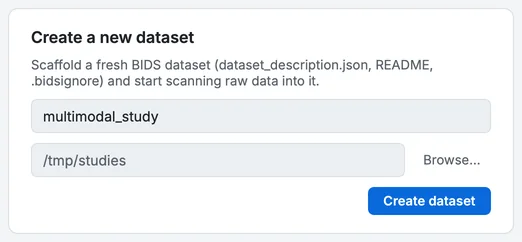
The Create a new dataset card, filled in.
- Dataset name
- Where it is created
- Browse…
- Create dataset
Use letters, digits, hyphens and underscores. A name with a space is refused, and BIDS Manager offers the same name with underscores instead.
Step 2. Choose where it goes
The second field shows the folder the dataset is created in. Click Browse… to choose another one in your system's folder dialog. The new project is the folder multimodal_study inside it.
Step 3. Create it
Click Create dataset. BIDS Manager creates the folder, writes the first files of the dataset into it, and opens the Converter.
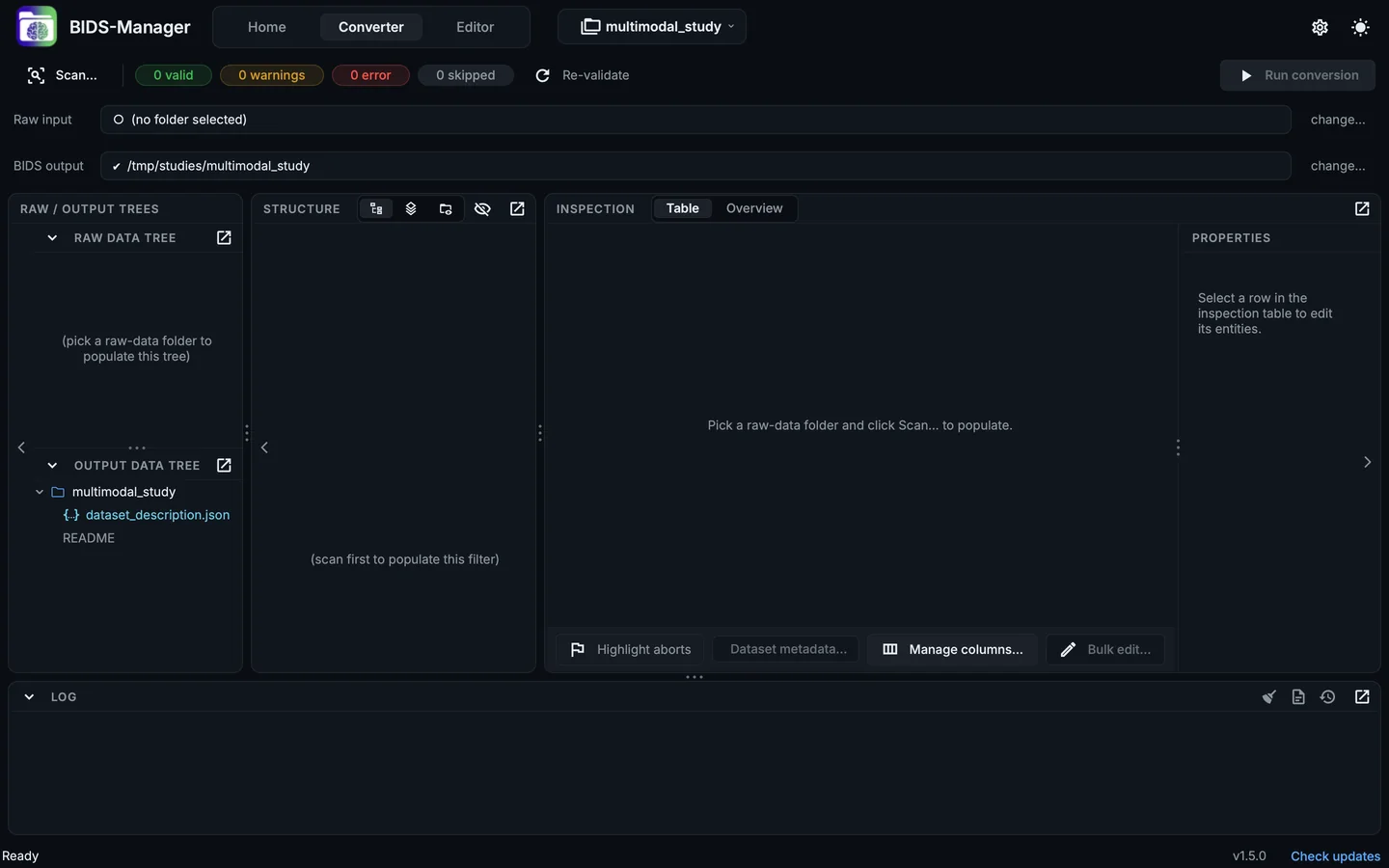
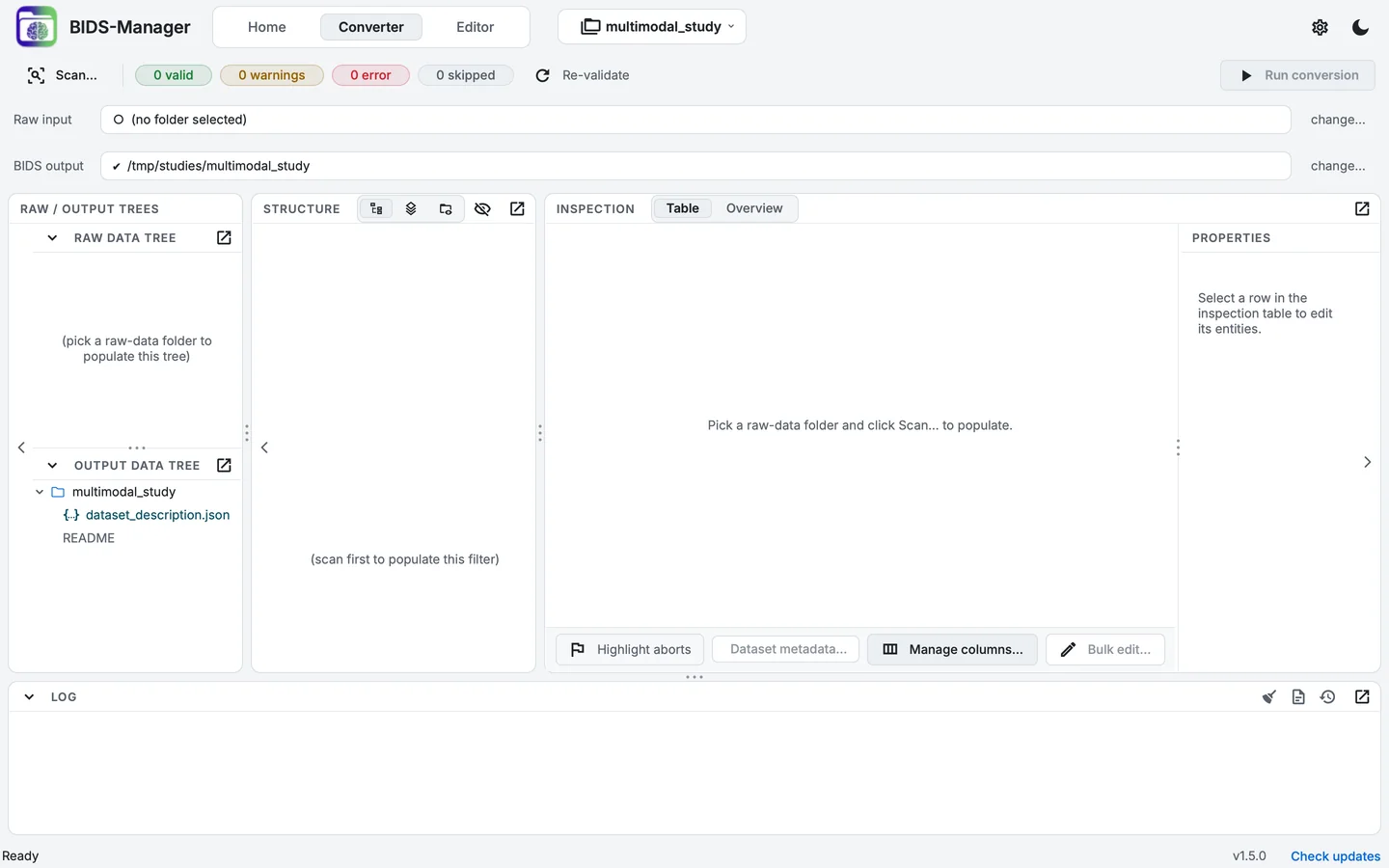
The Converter of the new, empty project.
- The project switcher
- BIDS output: the project folder
- The new dataset's files
- Raw input: not chosen yet
The header now shows the project's name, and BIDS output is the project folder. It is locked there: everything the Converter writes goes into this project.
What was created
A new project is already a valid, empty BIDS dataset:
multimodal_study/
├── dataset_description.json     Name, BIDSVersion 1.11.1, DatasetType raw
├── README                       a first README for you to replace
├── .bidsignore                  tells validators to skip BIDS Manager's own folders
└── .bidsmgr/
    └── project/                 the project's record: its scans and the edits to them
As you work, .bidsmgr/ gains logs/ (one log per scan, conversion, metadata pass and validation), provenance/ (what each subject was converted from) and the validation reports. Everything in it is described in Files BIDS Manager writes. Leave it in place: it is what makes the work resumable, and .bidsignore keeps it out of the way of analysis tools.
Switch between projects
The project's name in the header is the project switcher. Click it to see the open project with its folder, and Open or create another... (Home). Projects you opened before are listed there too, so you can switch without going back to Home.
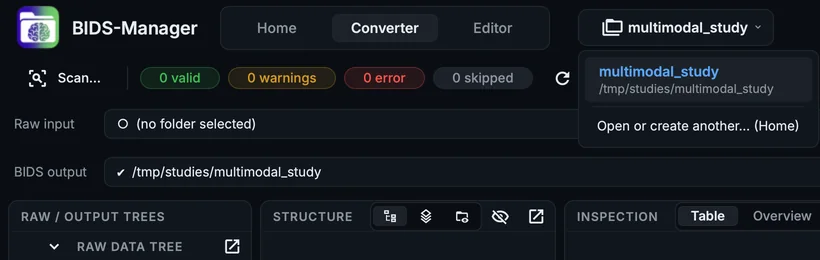
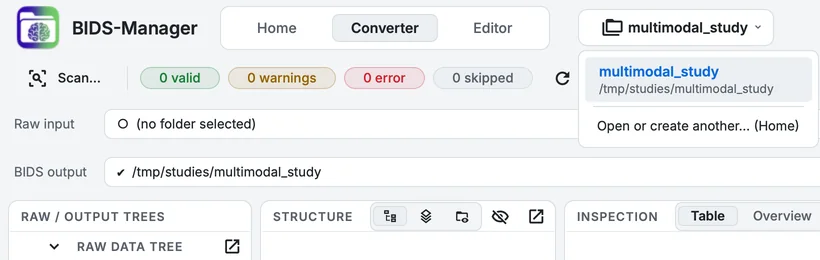
The project switcher's menu.
Home keeps the same list under Recent projects. Double-click a project to reopen it. Select several (⇧ + Click on macOS, Shift + Click on Windows and Linux for a range, ⌘ + Click on macOS, Ctrl + Click on Windows and Linux for one more) to take them off the list with Remove from list, which deletes nothing, or to delete them from the disk with Delete from disk..., which asks first and never touches the project that is open.
Open a dataset you already have
Open dataset folder... on Home opens a folder in one of three ways, depending on what it holds:
| The folder is | What happens |
|---|---|
| A BIDS dataset, or empty | It opens as a project. BIDS Manager adds its .bidsmgr/ folder, adds a README, .bidsignore or dataset_description.json if the dataset has none, adds its own two folders to an existing .bidsignore, and fills Name, BIDSVersion and DatasetType in dataset_description.json if they are missing. Nothing else changes. |
| Any other folder | BIDS Manager asks first: View in the Editor opens it read-only and writes nothing into it; Make it a project adds the files above so you can convert into it and edit it. |
Opening an existing dataset is covered in detail in the guide Adopting an existing BIDS dataset.
Undo in a project
Every change you make in the Converter's table is recorded in the project, so Undo (⌘Z on macOS, Ctrl+Z on Windows and Linux) takes back table edits one at a time, also after closing and reopening BIDS Manager, back to the last conversion; Redo (⇧⌘Z on macOS, Ctrl+Shift+Z on Windows and Linux) works until you close BIDS Manager or make a new edit. The Editor records every change it makes to the dataset's files, with the files as they were; the GUI cannot undo those changes, only the edits in the open sidecar or table before they are saved. The project folder and undo explains what is kept and for how long.
Your progress is kept in this browser only.