
Learn · Chapter 9 of 15
Validating in the Editor
Check the converted dataset against the BIDS standard, read each finding where it occurs, and fix the one error the sample has. The Editor is where you look at and change the dataset itself.
Open the Editor
Click Editor in the header. With a project open, the Editor shows that project's dataset.
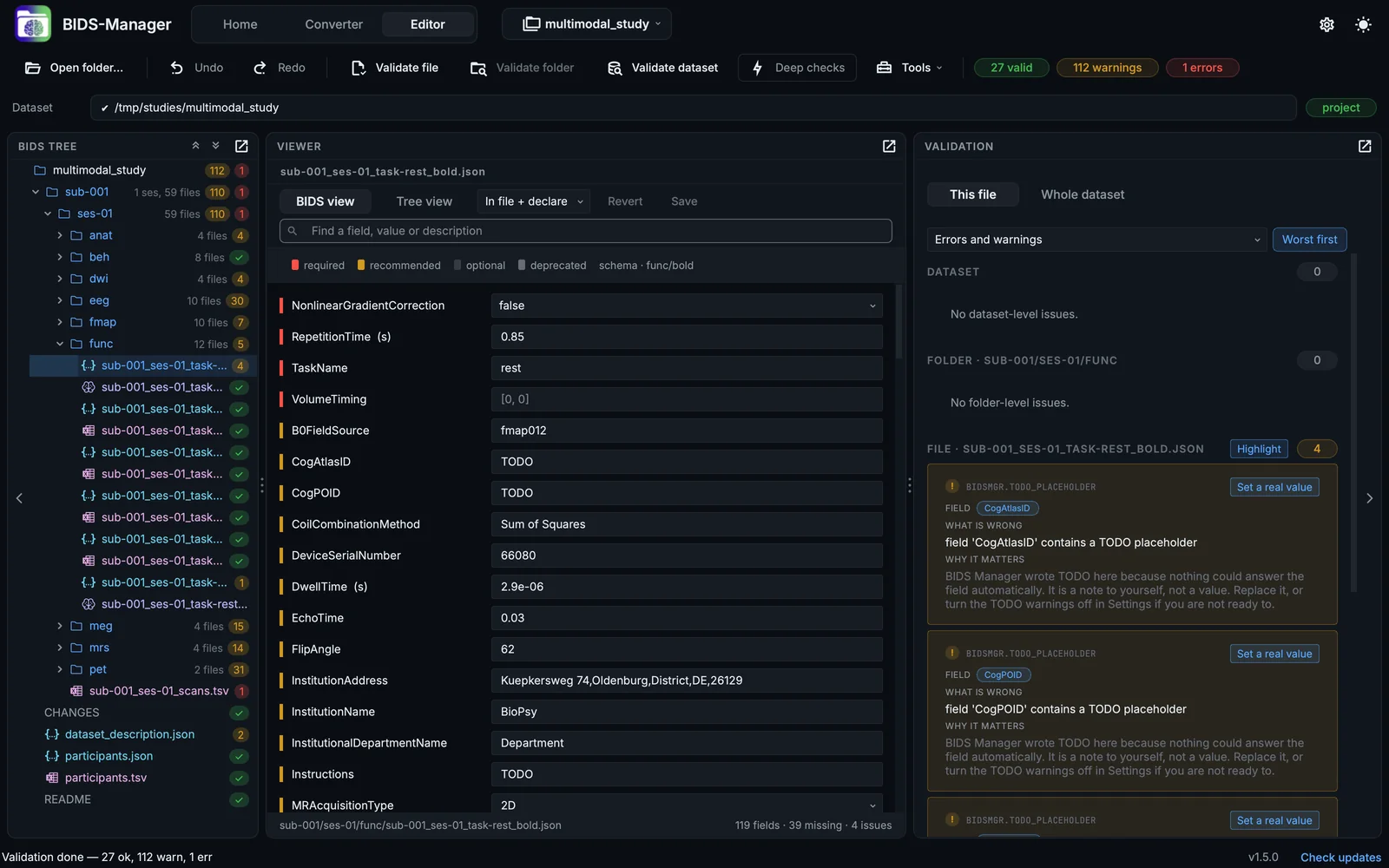
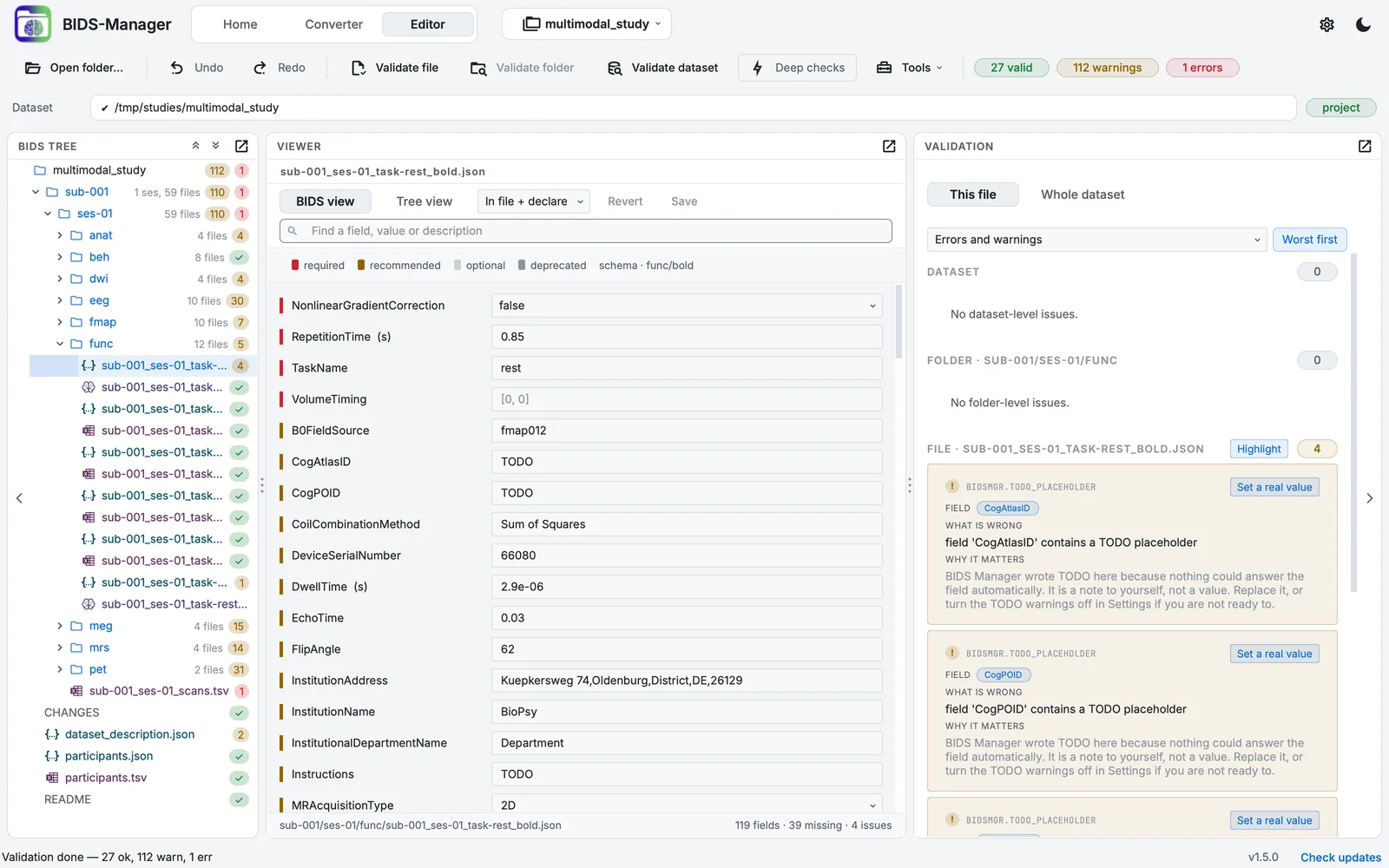
The Editor on the converted sample, with the BOLD run's sidecar selected.
- The toolbar: open, undo, validate, deep checks, tools, the counts
- The dataset and how it is open
- The BIDS tree
- The viewer: a form, a table, an image, a signal
- Validation
From the top: the toolbar (open a folder, undo and redo, validate a file, a folder or the dataset, Deep checks, Tools, and the counts once validated); the path bar, with a chip saying how the folder is open (here project); then three panels: the BIDS tree, the Viewer in the middle, which shows whatever file you select, and Validation on the right.
Validate the dataset
Step 1. Click Validate dataset
Click Validate dataset in the toolbar. The sample takes about a second.
Validating the dataset: the marks in the tree, the counts in the toolbar.
Step 2. Read the counts
The toolbar shows how many files are valid, and how many warnings and errors were found (a file can have several): 27 valid, 112 warnings, 1 errors. Click a count to list the files concerned.


The Editor's toolbar after validation.
An error breaks the standard: a tool reading the dataset may fail on it. A warning marks something the standard recommends and the dataset lacks, or a TODO placeholder left to fill. Most of the sample's warnings are of the second kind.
Step 3. Read the tree
Each file in the tree now has a mark: a tick when clean, a count of warnings or errors otherwise. Each folder adds up what is inside it, so you can follow the red count down to the file that has it.
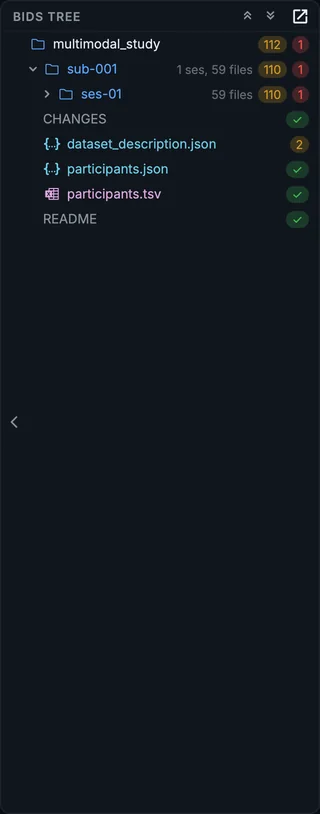
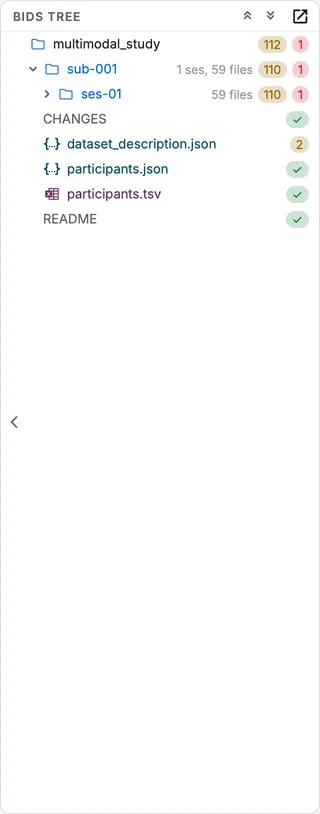
The BIDS tree after validation.
Read a finding
Step 4. Select a file
Click sub-001_ in func. The Viewer shows the sidecar as a form (chapter 10), and the Validation panel shows its findings.
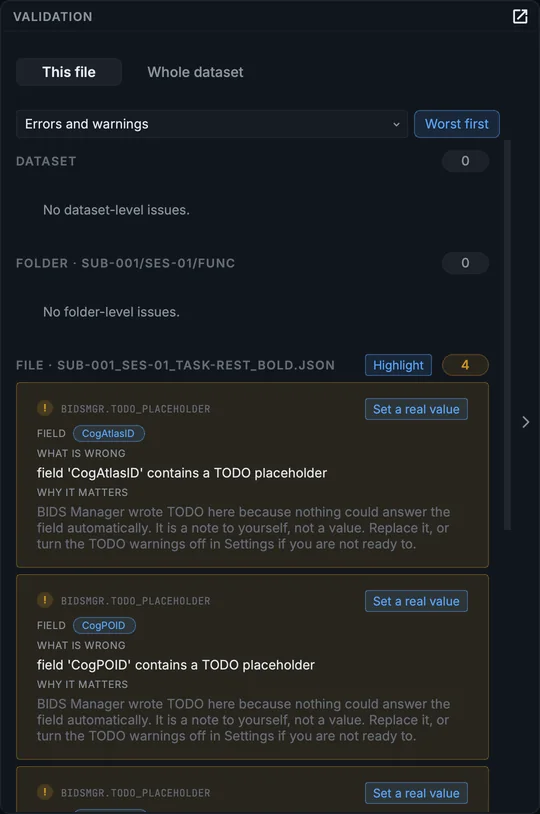
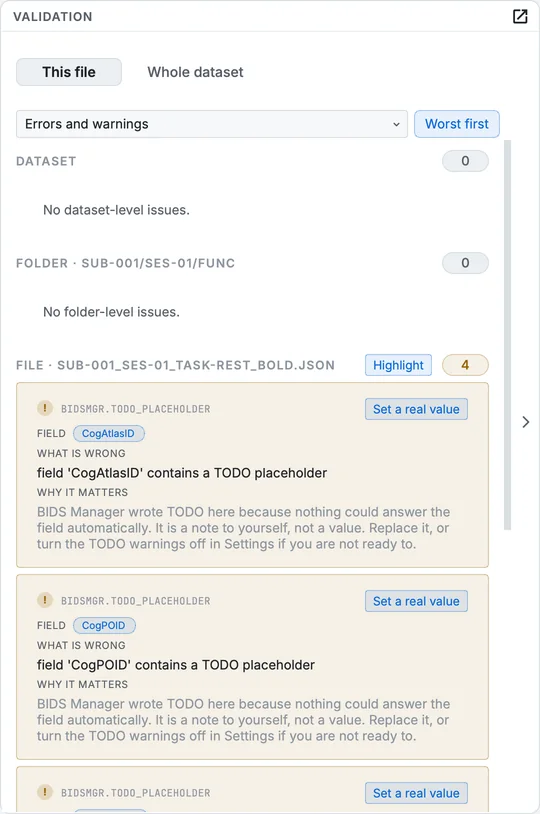
The Validation panel for the BOLD run's sidecar.
The panel has three sections: Dataset (findings about the dataset as a whole), Folder (about the folder the file is in) and File. Each finding is a card: the rule that fired, the Field it is about, What is wrong, Why it matters, and where in the standard the rule is Defined in.
Step 5. Go to the field
Click the button on a card. For a TODO placeholder it reads Set a real value: the form scrolls to that field and marks it. For other findings about a field it reads Fix. Highlight in the File section marks every field (or table cell) the file's findings are about, all at once.
The panel's dropdown narrows the list to errors only or warnings only, and Worst first sorts errors to the top. Whole dataset at the top of the panel lists every kind of finding once, with the number of files it fired on, and Fix in all files for findings that can be answered the same way everywhere.
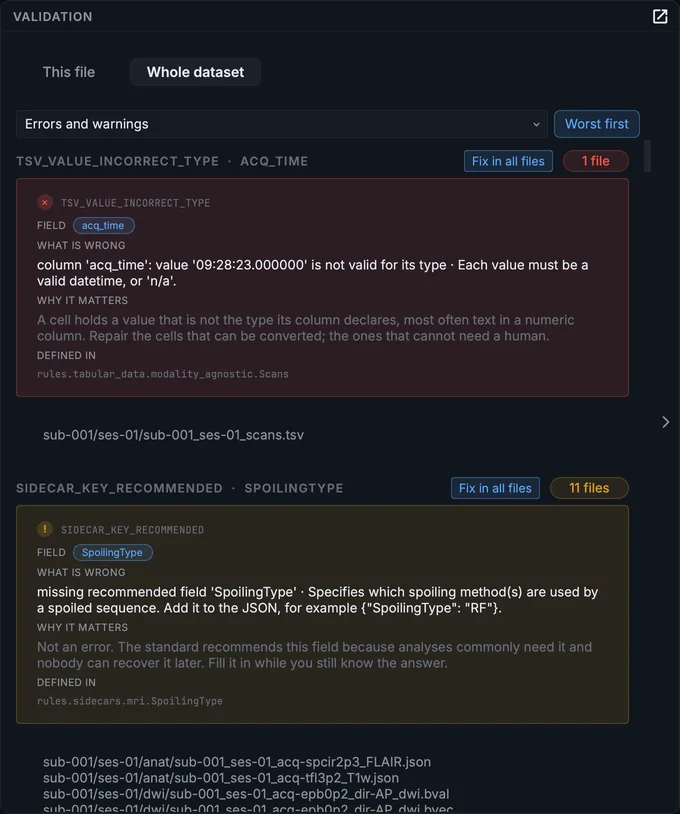
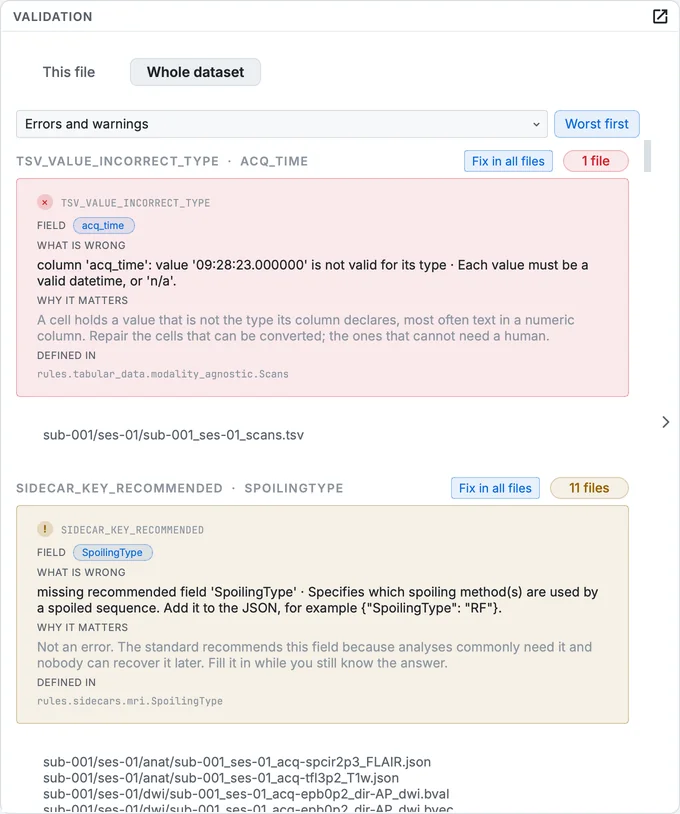
The Whole dataset view.
Fix the error
The one error is in the session's scans table, sub-001_ses-01_scans.tsv: the PET scan's acq_time is 09:28:23.000000, a time without a date. This GE scanner's header holds no acquisition date, and BIDS Manager writes the time alone (see Known issues). BIDS wants a date and time, or n/a.
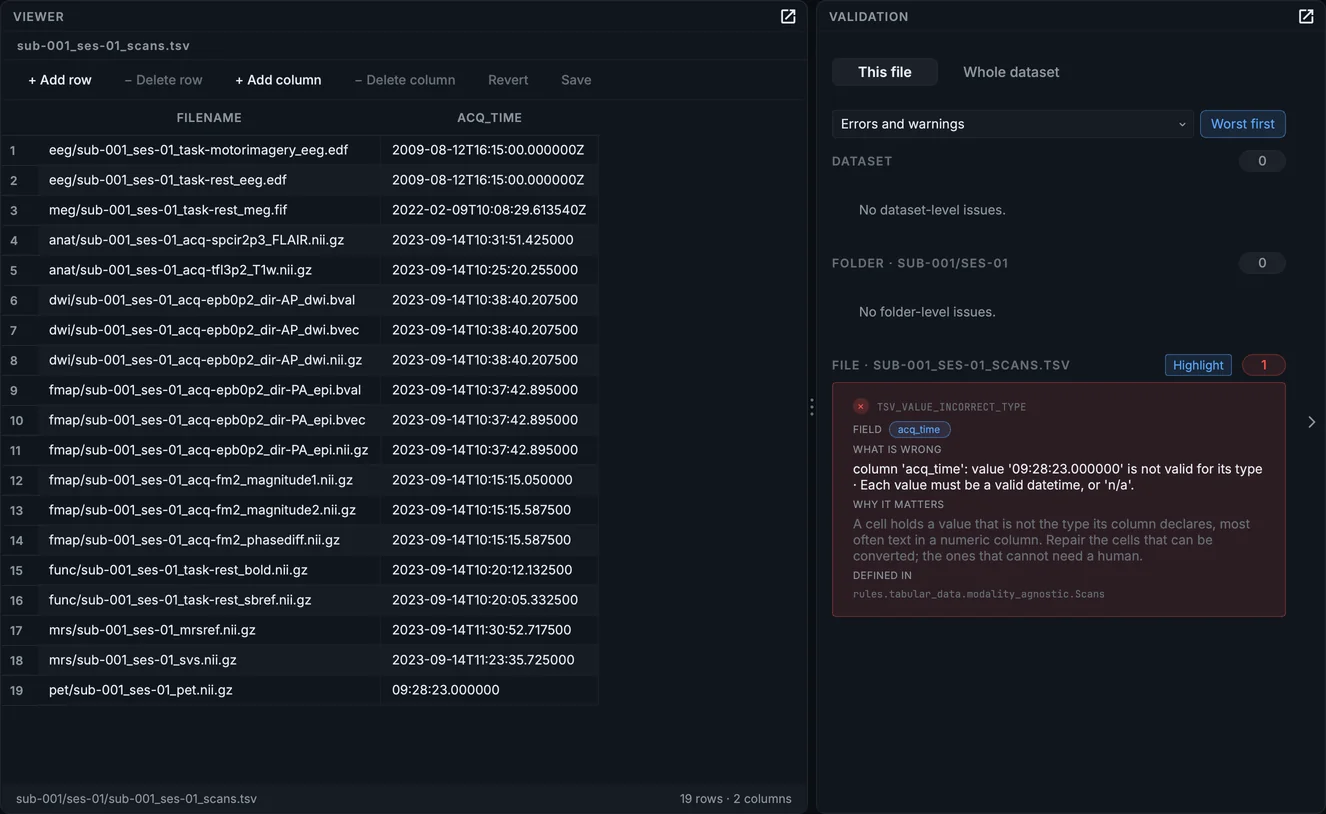
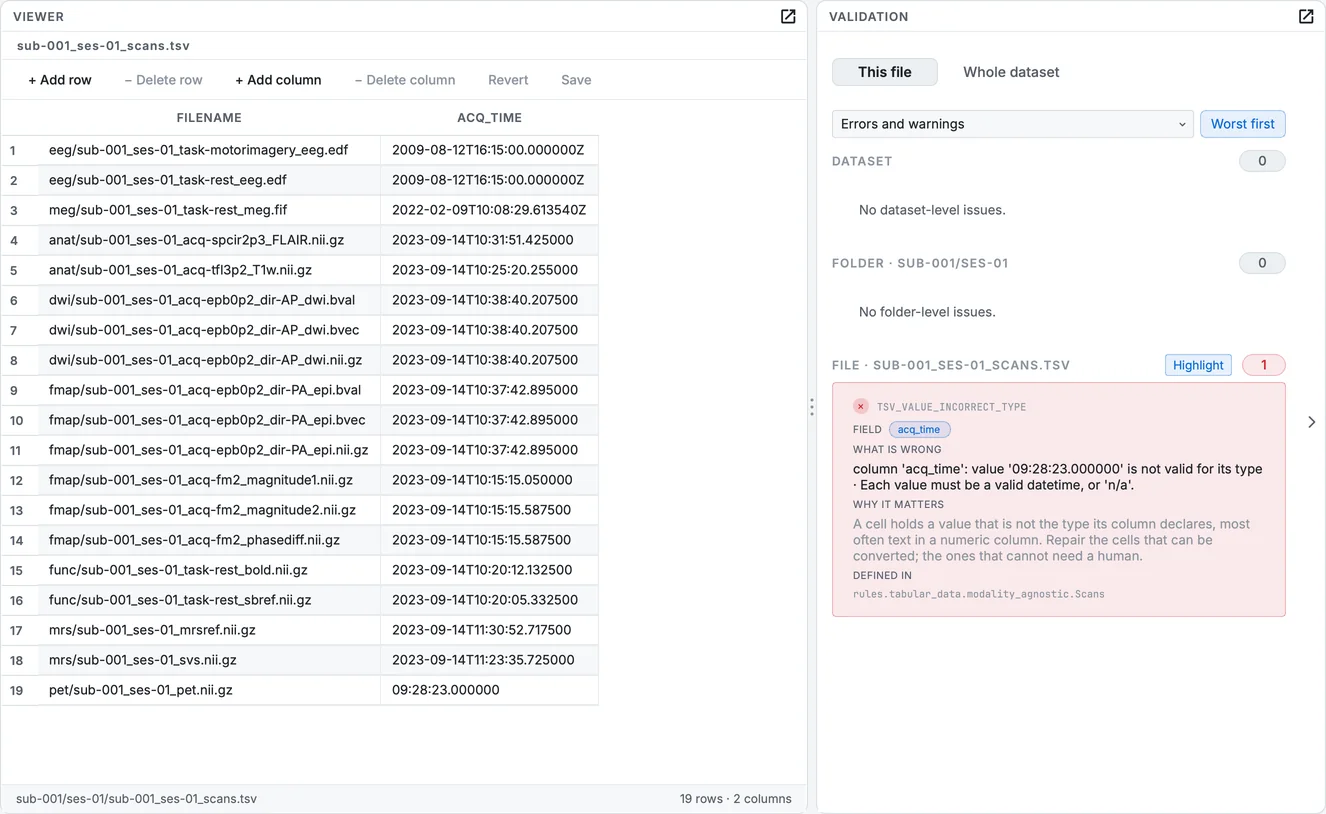
The scans table, with the error in the Validation panel.
Step 6. Open the scans table
Click sub-001_ses-01_scans.tsv in the tree. The Viewer shows it as a table: 19 rows, one per file of the session.
Step 7. Correct the cell
Double-click the PET row's acq_time cell (the last row) and type 2009-10-02T09:28:23: the phantom's study date with the time it already has. Press Return on macOS, Enter on Windows and Linux, then click Save above the table.
Step 8. Validate again
Click Validate dataset. The count of errors is now 0, and 28 files are valid.
Correcting the PET row's time in the scans table, saving, and validating again.
Deep checks, and the report
Deep checks in the toolbar makes Validate dataset also open every NIfTI image's header: slower, and it catches a truncated image or a header that disagrees with its sidecar. The conversion's own validation (chapter 8) ran with it. The conversion's validation (with Write an HTML validation report on) and bidsmgr-validate --html also write validation_report.html into the project's .bidsmgr/ folder, a page you can send to a colleague; validating in the Editor does not write it.
Fix ups
Tools > Fix ups... gathers repairs that apply to the whole dataset: what is missing before it can be shared, companion files the standard expects (events.tsv, channels.tsv), a CITATION.cff written from the dataset description, metadata repeated in every file that can move to one file at the top, and TODO placeholders to write or take back.
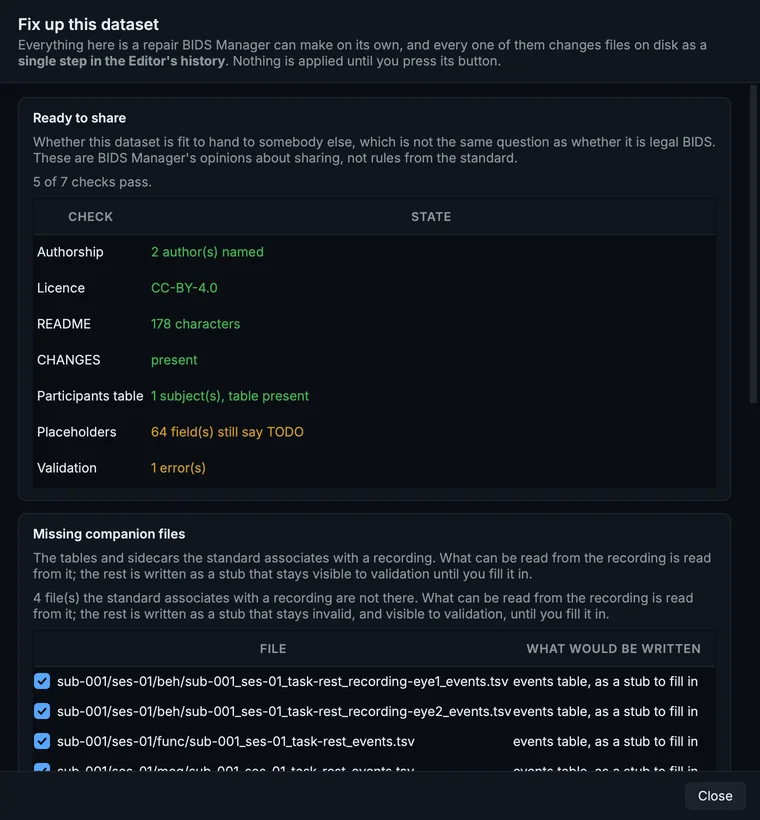
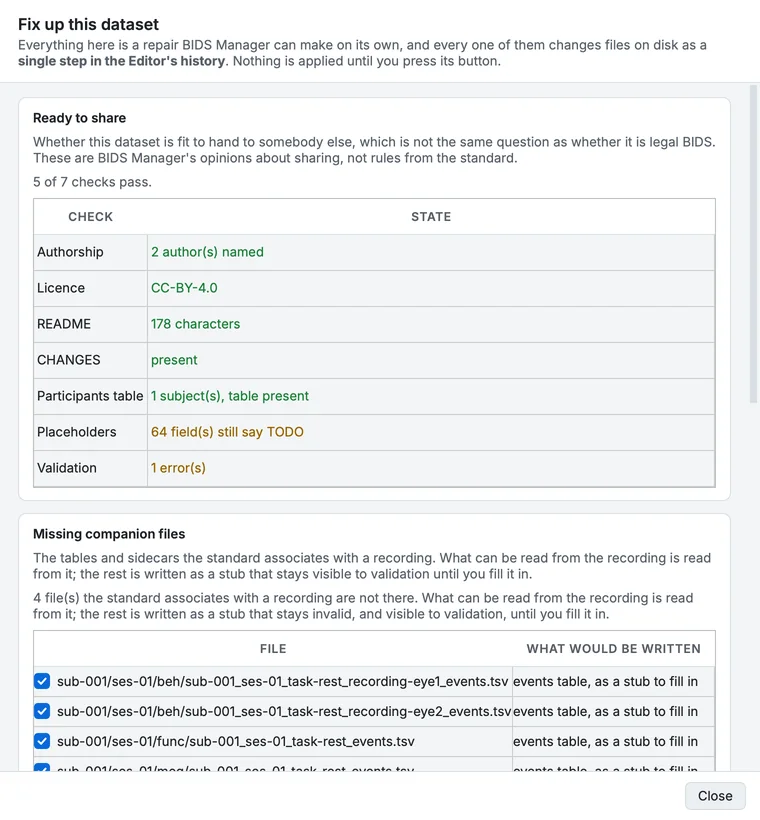
Fix up this dataset.
How a folder can be open
The chip at the end of the path bar says how the Editor has the folder open:
| Chip | Meaning |
|---|---|
| project | The open project: the Editor's tools and saved sidecars are recorded in its .bidsmgr/ folder, with the files as they were. |
| dataset | A BIDS dataset that is not the open project, open for editing. Edits are recorded in its own .bidsmgr/. |
| view only | Open for looking only: nothing is written into the folder, and editing and the tools are off. |
Open folder… in the toolbar asks, for a BIDS dataset, whether to Open as project (the Converter switches to it too) or View only. A folder that is not BIDS opens for viewing only. Back to multimodal_study in the path bar returns to the project.
Your progress is kept in this browser only.