
Learn · Chapter 3 of 15
Scanning raw data
Point a scan at the sample's raw folder and read what it found. A scan reads every file's header, groups the recordings by participant and session, and proposes a BIDS name for each one. It writes nothing into your raw data.
The raw folder
The sample's raw folder holds one participant's recordings, sorted the way they came off each machine:
raw/sub-001/
├── mri/          Siemens DICOM: anatomy, a BOLD run with its reference and physiology,
│                 a fieldmap, diffusion, three scouts and a scanner report
├── mrs/          Siemens spectroscopy and its water reference
├── pet/          GE Advance DICOM of a brain phantom, one FDG scan
├── eeg/          two EDF recordings: rest and motor imagery
├── meg/          one Elekta Neuromag recording
└── eyetracking/  one SR Research EyeLink recording
BIDS Manager does not need the files sorted by kind or named in any particular way. It decides what each file is from its contents.
Scan the folder
Step 1. Choose the raw folder
Click change… at the end of the Raw input bar and choose the sample's raw folder in your system's folder dialog.


The toolbar and the two path bars, with the raw folder chosen.
- Scan…
- Raw input
- BIDS output
The Raw data tree fills with the folder's contents, so you can check you picked the right one before scanning.
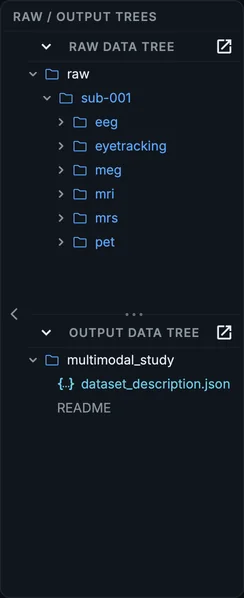
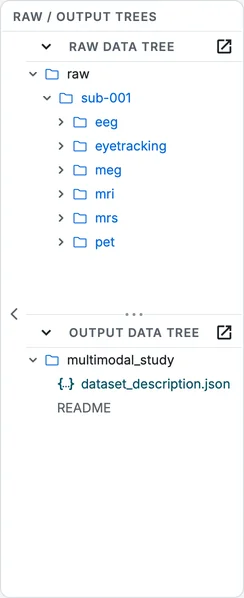
The raw data tree.
Step 2. Click Scan
Click Scan… in the toolbar. While the scan runs, the button reads Stop scanning, a spinner turns in the toolbar, and the Log at the bottom shows what is being read. The sample takes a few seconds.
Clicking Scan… on the multimodal sample. The table fills with 19 rows and the counts appear in the toolbar.
Step 3. Read the Log
The Log reports what the scan read and anything it wants you to know.


The Log after the scan.
The sample's log has one note: it found two DICOM studies, BIDS (the participant's MRI) and petqc_ge1 (the PET phantom). In a real study that often means two studies were mixed in one folder. Here it is expected, because the sample is put together from several acquisitions.
Step 4. Read the counts
The toolbar now counts the rows of the table by state.


The scan table and the counts after the scan.
- The scan table
- Valid
- Warnings
- Errors
- Skipped
The sample gives 19 rows: 4 valid, 12 warnings, 0 error and 3 skipped. A warning marks a row worth reading; it converts as it is. An error marks a row that cannot be converted as it is, such as one without a name or one whose name another row also has: fix it, or untick it.
What the scan found
One row per recording. Each kind of source becomes rows like these:
| Source | Rows | Proposed for |
|---|---|---|
| MRI (DICOM) | 12 | 8 to convert: T1w, FLAIR, BOLD and its single-band reference, the physiology log, a fieldmap, diffusion and its reversed-phase reference. 4 left out: three scout reconstructions and the scanner's PhoenixZIPReport |
| MR spectroscopy | 2 | the spectrum and its water reference, in mrs |
| PET | 1 | the FDG scan, in pet |
| EEG | 2 | rest and motor imagery, in eeg |
| MEG | 1 | the resting recording, in meg |
| Eye tracking | 1 | the binocular recording, in beh |
A fieldmap is one row although it comes as several DICOM series (its magnitude and phase images): BIDS Manager treats the pieces of one acquisition as one recording. The physiology log of the BOLD run is its own row because it becomes its own files.
Rows left out
Click 3 skipped in the toolbar to see the three scouts the scan set aside, each with its reason. The fourth row left out, the PhoenixZIPReport, is not in that list: it carries the ⊘ badge in the table, and the toolbar counts it among the valid rows.
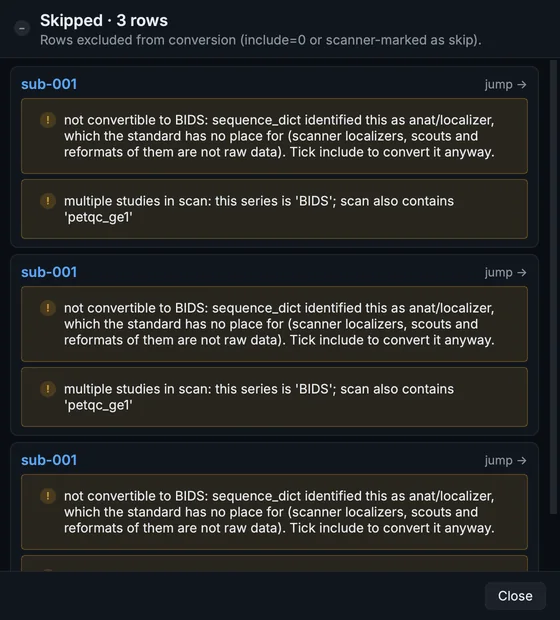
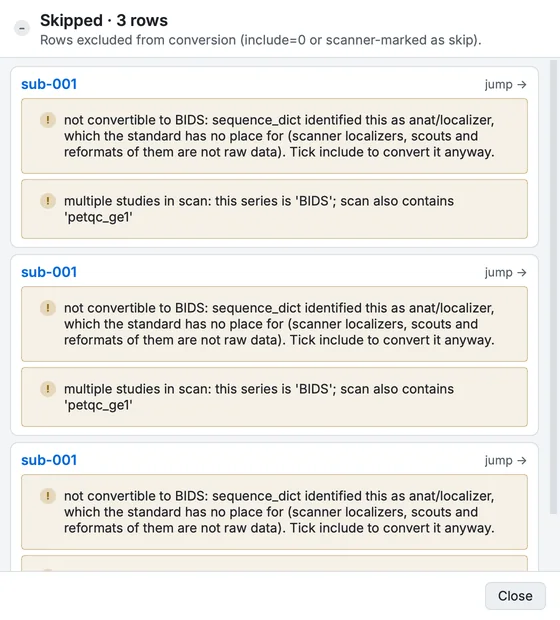
The Skipped list.
Scouts (the quick localiser images at the start of a session) are not data BIDS has a place for. The PhoenixZIPReport is a DICOM object without an image: BIDS Manager recognises those by the missing pixel data and leaves them out, because no converter can turn them into an image. Rows the scan leaves out on its own stay out even if you tick them; a row you untick yourself can be ticked again.
Rows with a warning
Click 12 warnings to read them.
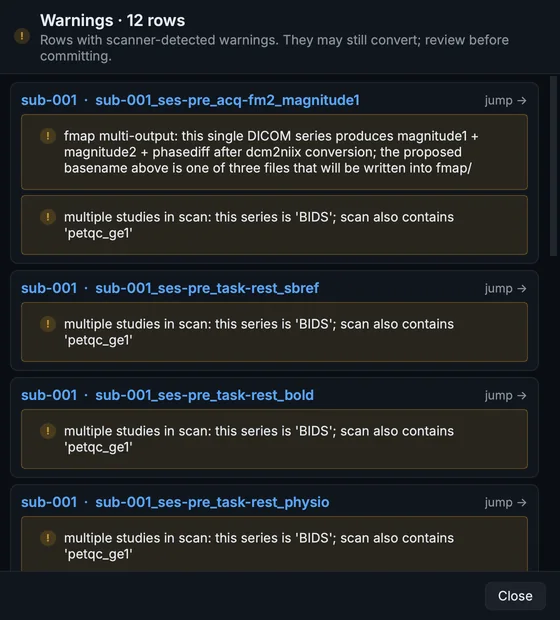
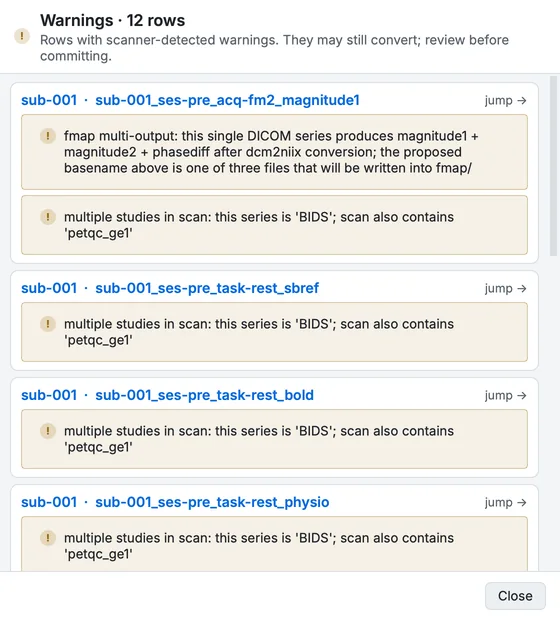
The Warnings list.
In the sample, every MRI, spectroscopy and PET row carries the note about two studies, the fieldmap row says that it will be written as three files (magnitude1, magnitude2, phasediff), and the eye-tracking row says that both eyes will be written.
Proposed subjects and sessions
The scan proposes a subject for every row from what the source says about the participant: DICOM headers carry a patient ID, EEG and MEG files a folder or a file name. The sample's sources do not agree, so the scan proposes 4 subjects: the MRI, EEG and MEG as sub-001, the spectroscopy (a different patient ID) as sub-002, the PET phantom (no ID at all) as sub-003 and the eye tracker as sub-004. It also proposes sessions from the recording dates. Chapter 4 sets one subject and one session for all of them, in two edits.
Scan again, or scan more
Each scan of a source folder is kept in the project as its own scan table, numbered: 0001__raw is this one. Scanning another folder (another participant's data) adds 0002__..., and the Scan table selector in the toolbar switches between them. Your edits to a table are kept with it.
If the raw folder moves after a scan, the Raw input bar says Moved and offers Locate...: choose the folder's new place and BIDS Manager checks, by the series it expects to find there, that it is the same data.
Settings that change a scan
Settings (the gear in the header) has three pages that change a scan: Scan and Scan rules, described here, and Classification (The classifier).
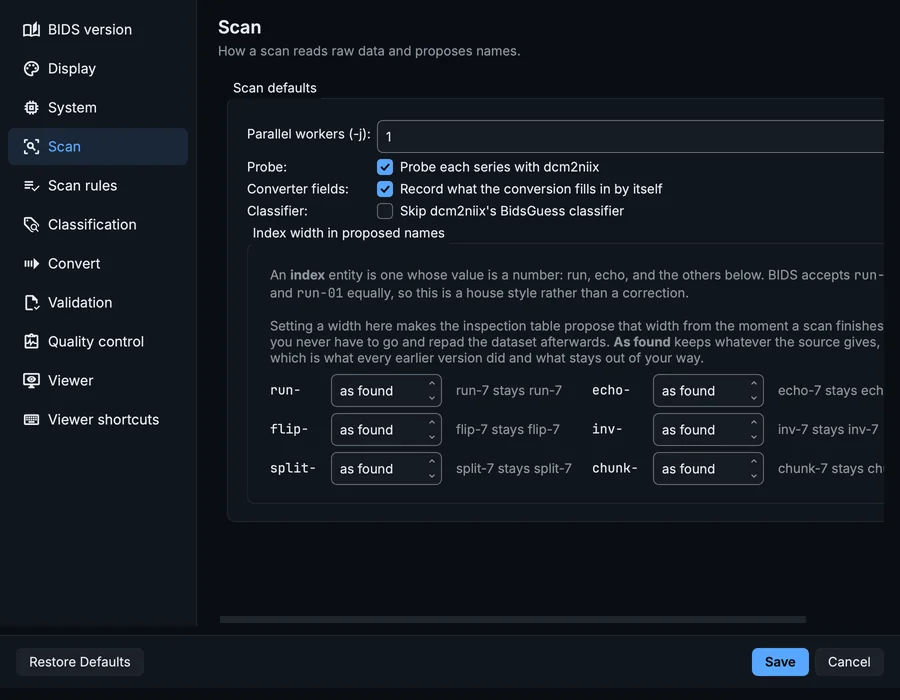
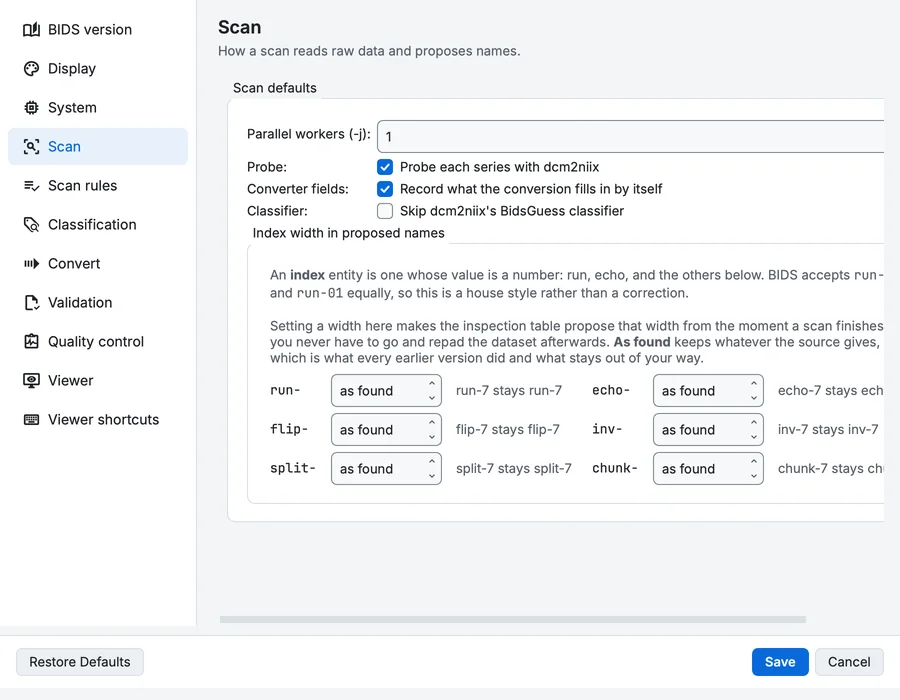
Settings, Scan page.
- Parallel workers (-j): how many files are read at once. Raise it on a large study; it is capped at your computer's thread count.
- Probe (on by default): runs dcm2niix on each MRI and PET series during the scan, so the proposed names know how many files each series really produces. It costs time on large studies; turn it off if a scan is too slow.
- Index width in proposed names: whether run numbers and other indexes are proposed as
run-1orrun-01.
Scan rules lets you leave out series by name (a calibration series your site always runs) and give your own naming hints for series the classifier cannot name.
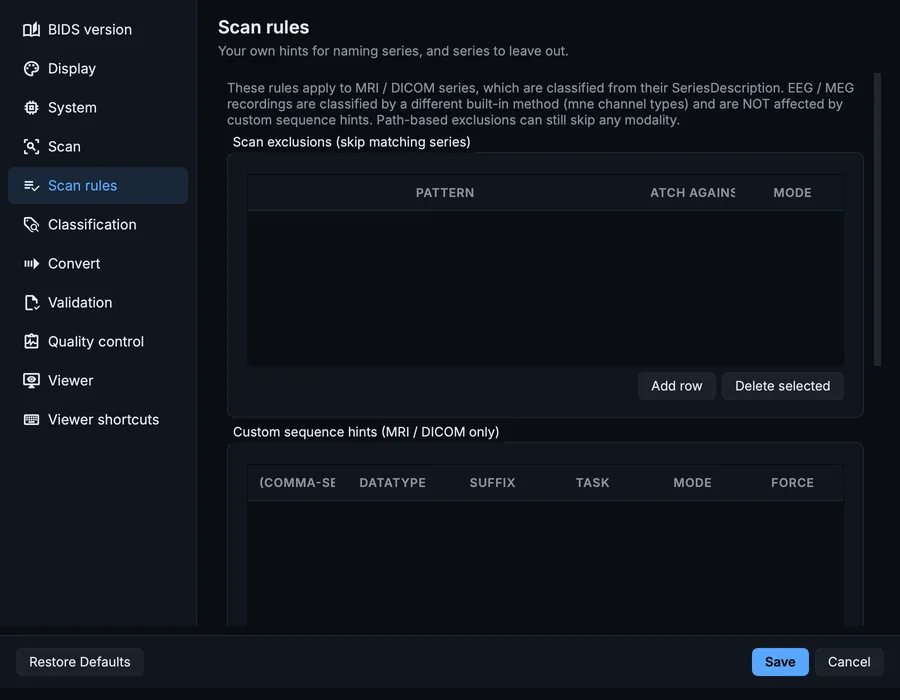
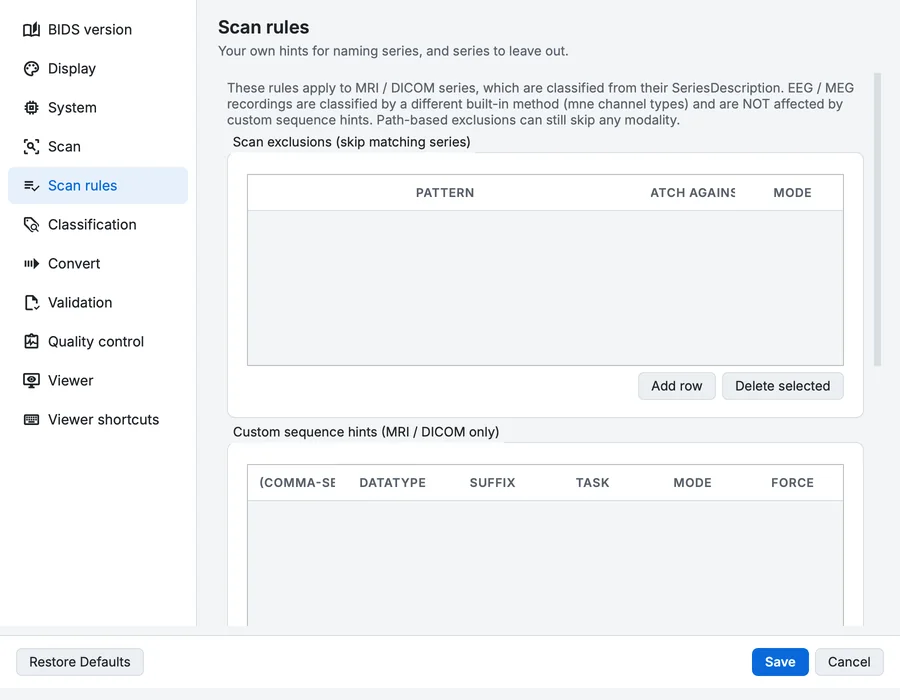
Settings, Scan rules page.
How the classifier decides a name, and how to change its thresholds, is in How names are decided.
Your progress is kept in this browser only.