
Learn · Chapter 10 of 15
Editing metadata
Edit a sidecar as a form that knows the standard, or as the plain tree of keys the file holds; search it; edit a table; and undo. The course answers two of the sample's TODO placeholders and the two PET fields the dose sheet could not fill.
The sidecar form
Select sub-001_ in the BIDS tree. The Viewer shows it in the BIDS view: every field the file holds and every field the standard declares for a BOLD run, in one list.
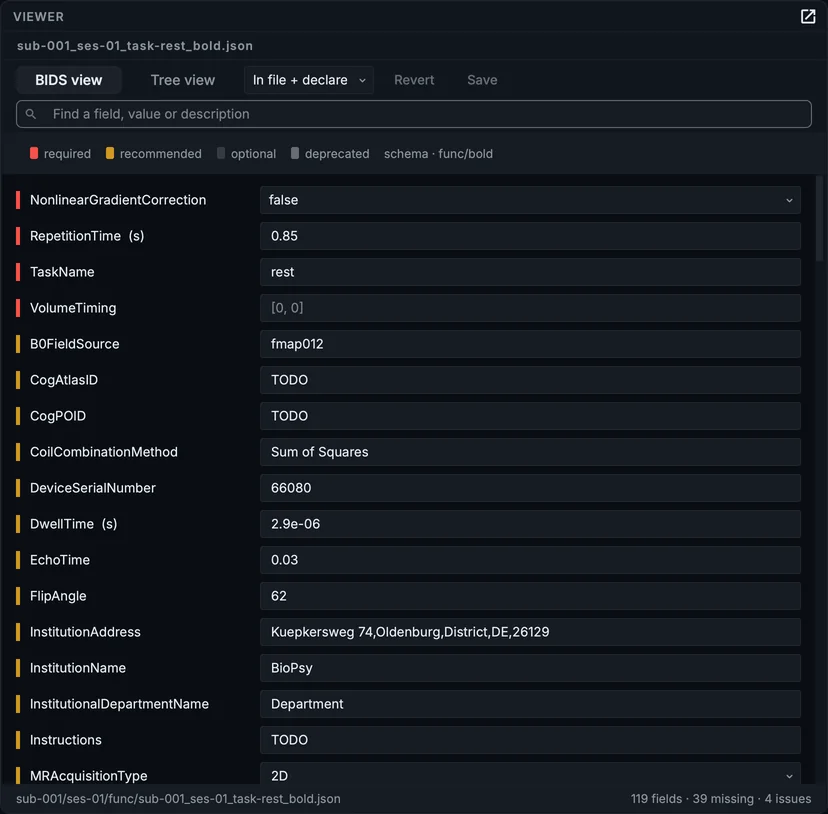
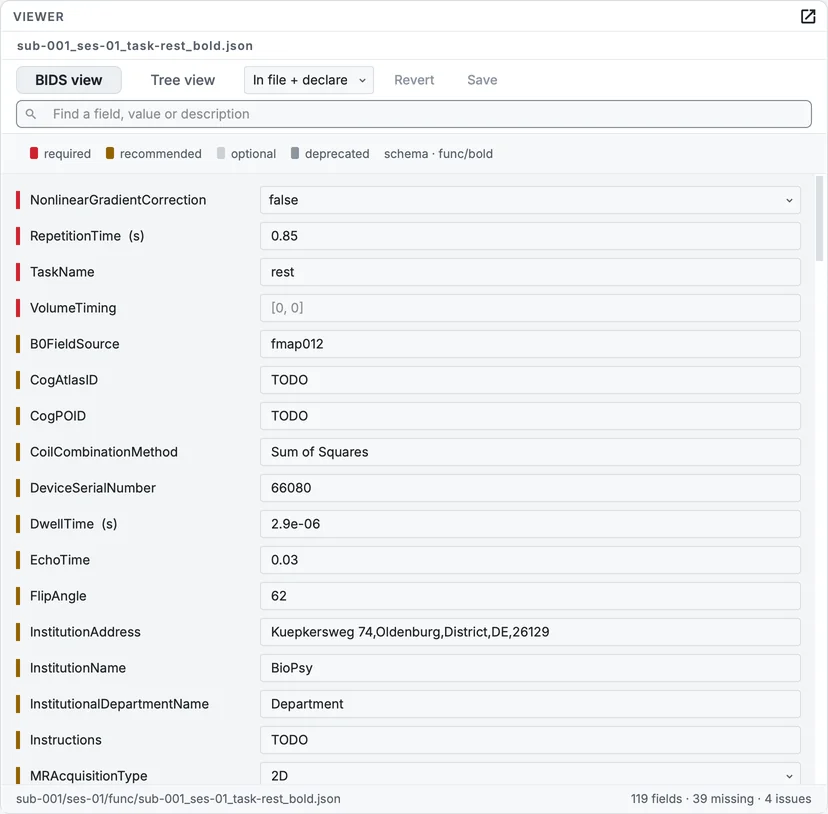
The BOLD run's sidecar in the BIDS view.
- The bar at the left of each field is its level: required, recommended, optional or deprecated, as the legend says. The label under the search names the rule set the form follows (
schema · func/bold). - Each field's control follows its type: a dropdown for a field with a list of allowed values, a number field for a number, a list for an array. Hover a field's name for the standard's description of it.
- The dropdown beside the views chooses what is listed: what is in the file and what the standard declares (the default), only what is in the file, or only what is missing.
- The line at the bottom counts the fields, how many declared ones are missing, and the findings.
Tree view shows the same file as keys and values, exactly as stored, and lets you add a field or a subfield, or delete one.
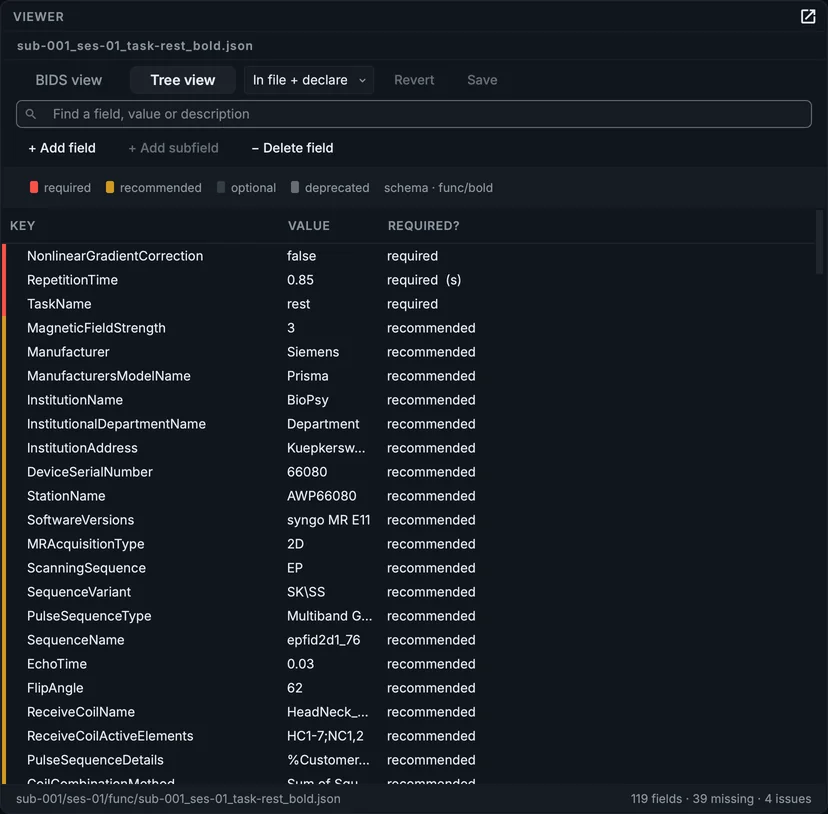
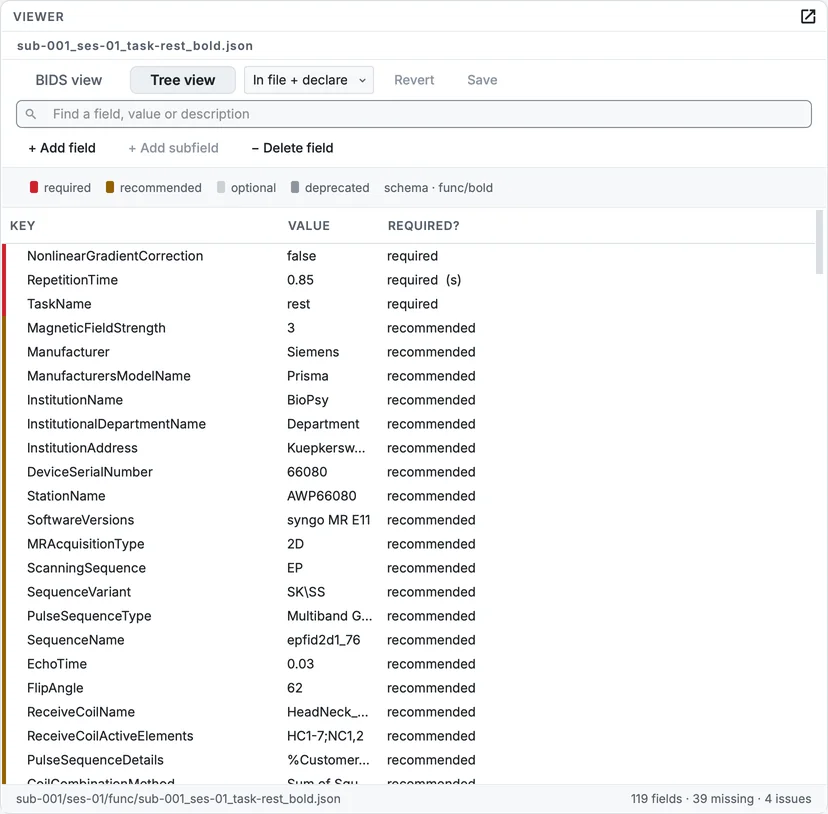
The same sidecar in the Tree view.
Fill in the task description
Step 1. Find the field
Click in the search field above the form, or press ⌘F on macOS, Ctrl+F on Windows and Linux, and type TaskDesc. Only the fields whose name, value or description match remain, with a count.
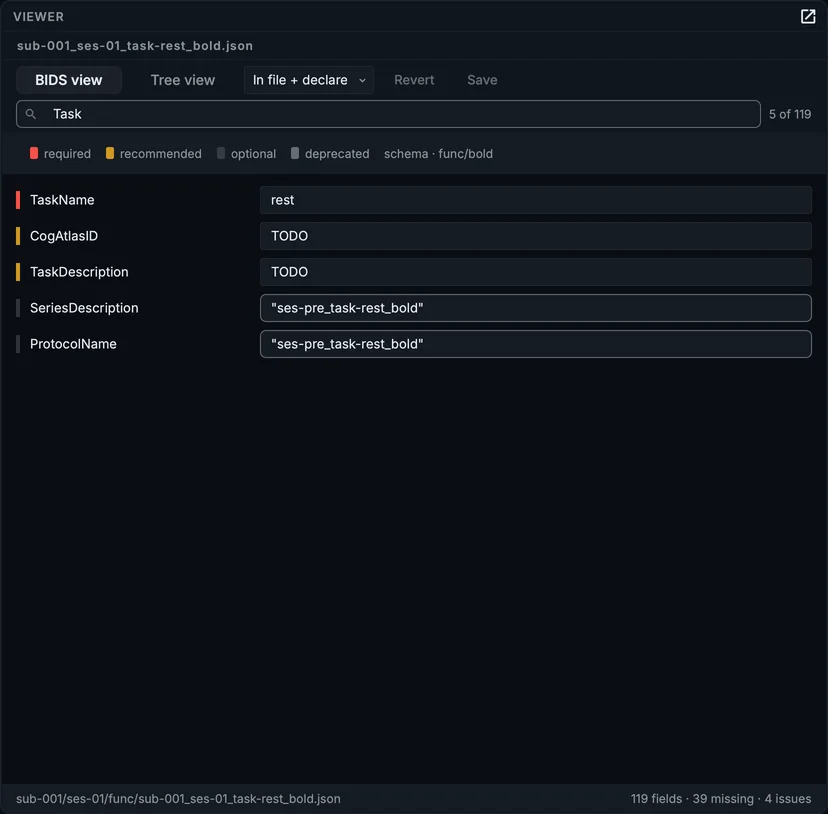
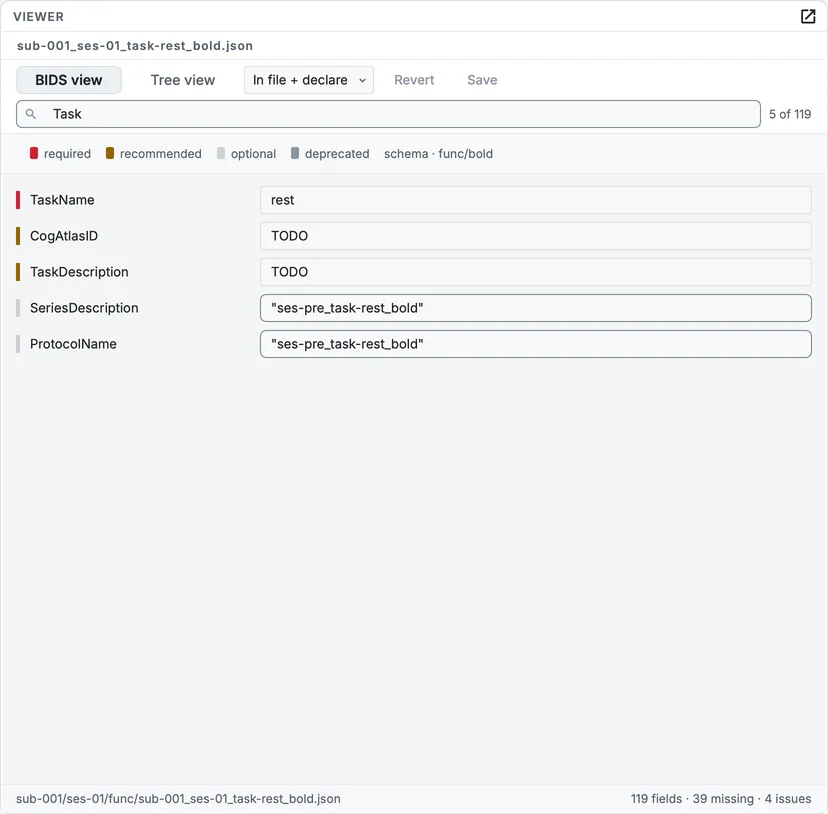
Searching the sidecar.
Step 2. Type the description
Click the TaskDescription field, select the placeholder TODO, and type a description. The course uses: Resting state with the eyes open, looking at a fixation cross. The toolbar now says 1 unsaved change.
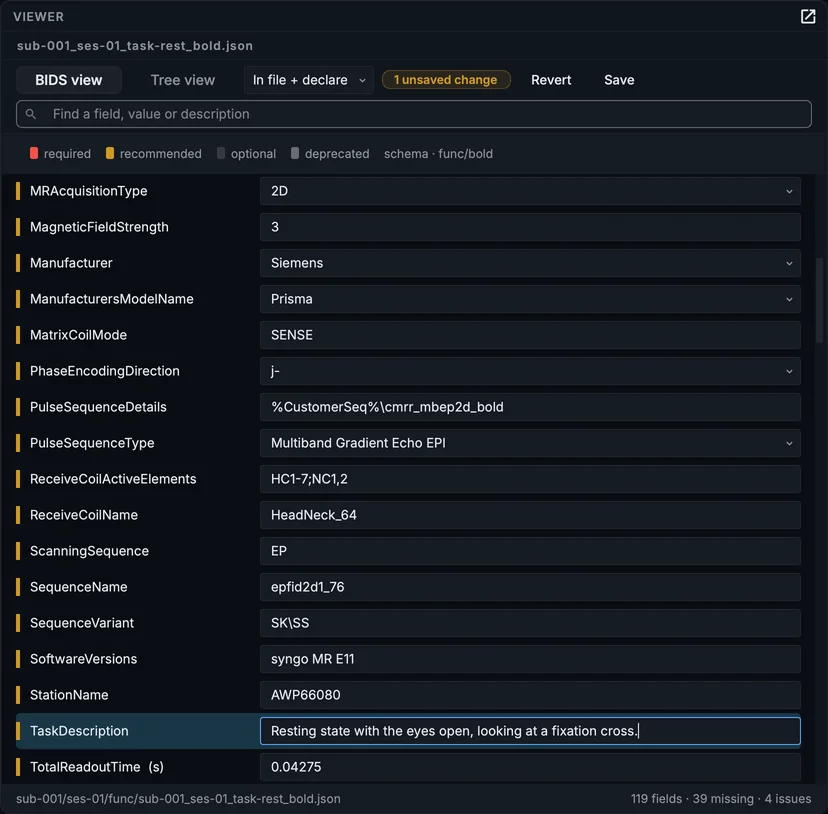
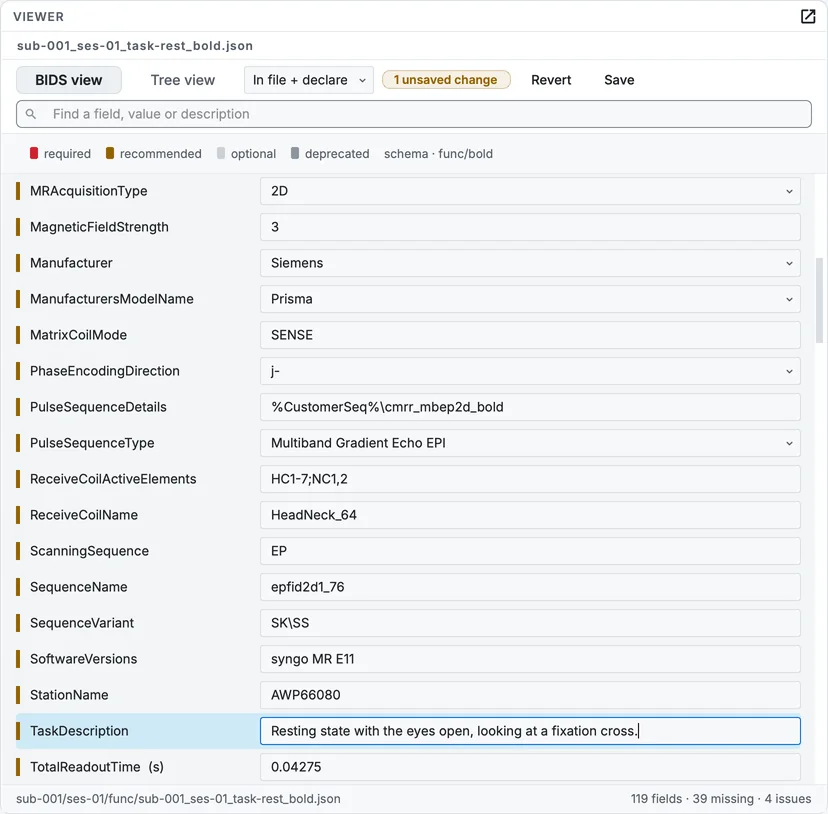
The description typed, before saving.
Step 3. Save
Click Save. The file is written, and the change is recorded in the project's history, with the file as it was before.
Finding TaskDescription, typing it, and saving.
Answer Instructions the same way (the course uses Keep your eyes on the cross and let your mind wander.).
Fill the two PET fields
The dose sheet's none did not reach two PET fields (chapter 7), so the conversion wrote ["TODO"] into them. Select sub-001_ses-01_pet.json in pet, and in ReconMethodParameterLabels and ReconMethodParameterUnits replace the TODO entry with none. Both are arrays: each entry has its own line, and Add entry adds a line. Click Save.
Apply a field to other files
Right-click (Control-click on a Mac) a field in the form for two more actions:
- Apply this field to other files writes the same value into the same field of other files you choose: the institution of every recording, say.
- Where does this value come from? says which layer of the dataset holds the value, when the sidecar inherits it from a file higher up.
Tables
Select participants.tsv at the top of the tree. The Viewer shows it as a table you can edit.
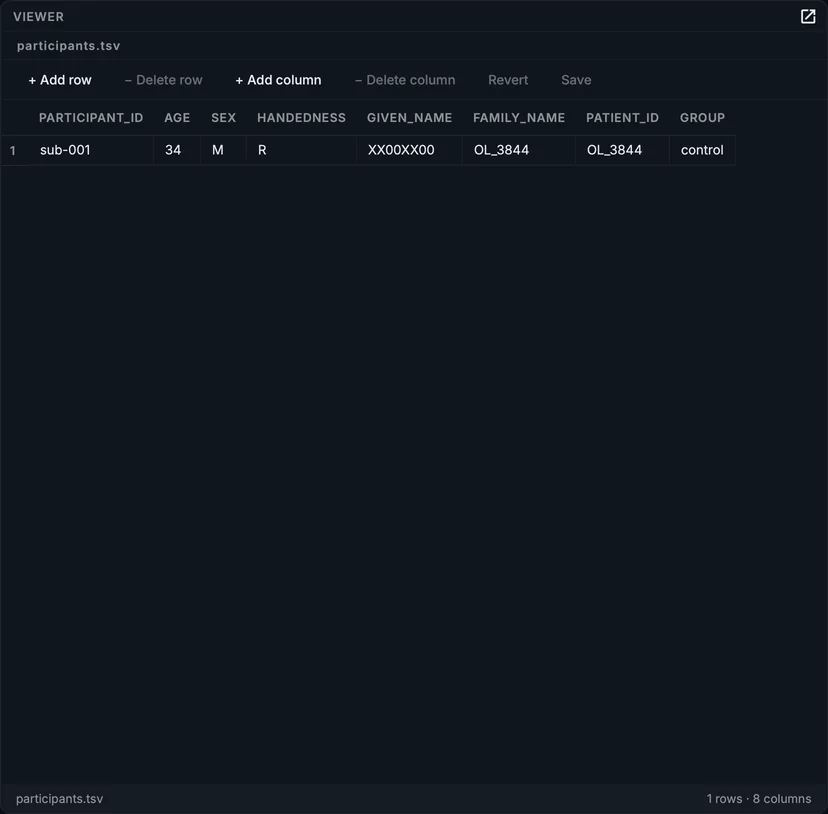
participants.tsv in the table viewer.
Double-click a cell to edit it; + Add row, − Delete row, + Add column and − Delete column change its shape. Changes wait for Save, as in the form. A very long table opens read-only after its first rows, and says so.
The sample's participants.tsv holds three columns that identify the participant: given_name, family_name and patient_id, copied from the DICOM header. Chapter 14 deletes them before the dataset is shared.
A table whose sidecar gives a sampling frequency, such as a physiological recording (_physio.tsv.gz), has a Visualize button that opens it in the signal viewer (chapter 12).
Undo and redo
Undo and Redo in the toolbar step through your edits of the sidecar or table that is open, saved or not. While you type in a field, ⌘Z on macOS, Ctrl+Z on Windows and Linux undoes the typing in that field only. To take back a saved change, undo it and click Save again. The steps are forgotten when you open another file.
Every save of a sidecar, or of a README or other text file, is also recorded in the project's history, with the file as it was before; saving a table is not, so keep a copy of a .tsv before large changes. The project folder and undo explains what that history holds.
Your progress is kept in this browser only.