
Reference
The GUI
The parts of BIDS Manager's GUI, named as the documentation names them. Hover a number in a figure to see the part; each view has its own page.
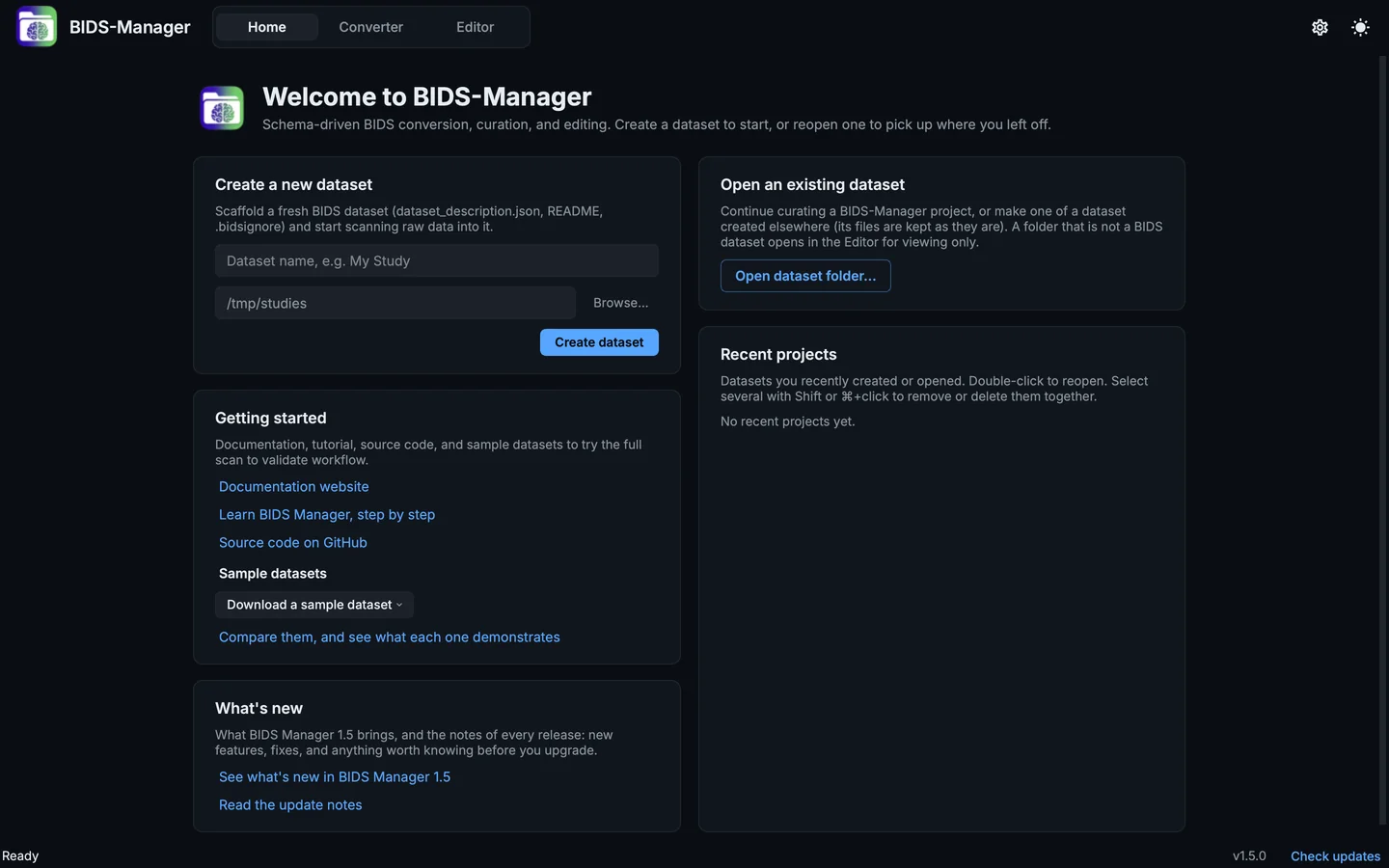
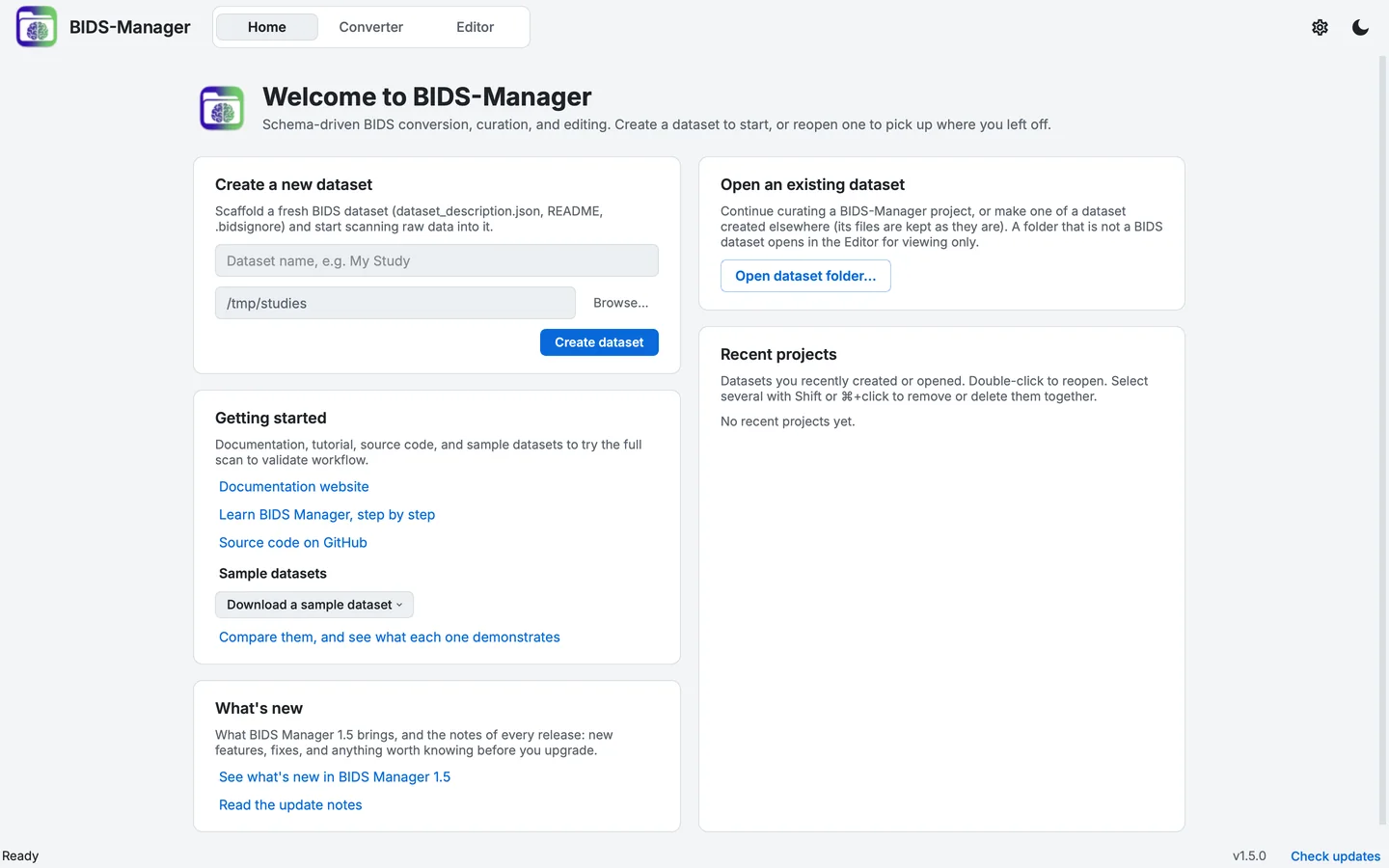
The GUI on Home.
- The header: the views, the project, Settings and the theme
- Home, Converter and Editor
- Create a new dataset
- Open an existing dataset
- Download a sample dataset
- What's new: this release, and the update notes
- Recent projects
- Settings
- Theme
- The status bar: messages, the version, Check updates
The header


The header, with a project open.
- The logo: opens About
- The three views
- The project switcher
- Settings
- The theme menu
| Part | What it does |
|---|---|
| The logo | Opens About: the version, the lab, the authors and the acknowledgements. |
| Home, Converter, Editor | The three views. BIDS Manager opens on Home; with a project open it returns to the Converter or the Editor, whichever you used last. |
| The project switcher | The open project's name. Click it for its folder, the recent projects, and Open or create another… (Home). |
| The gear | Settings (Settings). |
| The sun or the moon | The theme menu (First launch). |
The views
- Home creates a dataset, opens one, and lists the recent projects (select several to remove them from the list or delete them).
- The Converter scans raw data and converts it: The Converter.
- The Editor validates, edits and views the dataset: The Editor.
The status bar
At the bottom: what BIDS Manager is doing or did last, the version, and Check updates.
Panels
The Converter and the Editor are made of panels drawn as cards. Most panels can be folded and detached, and every panel can be resized (the Inspection panel and the Editor's viewer cannot be folded, only detached; Properties detaches together with the Inspection panel):
- folded: side panels fold to a strip along their edge, with the panel's name down it; top and bottom panels fold from their title bar. Click the strip or the title to unfold.
- resized: drag the grip (three dots) between two panels.
- detached: the icon at the right of a panel's title opens it in its own window; close the window to put it back.