
Reference
The Converter
Every part of the Converter, the view where raw data is scanned, curated and converted. The course uses each of them in chapters 3 to 8.
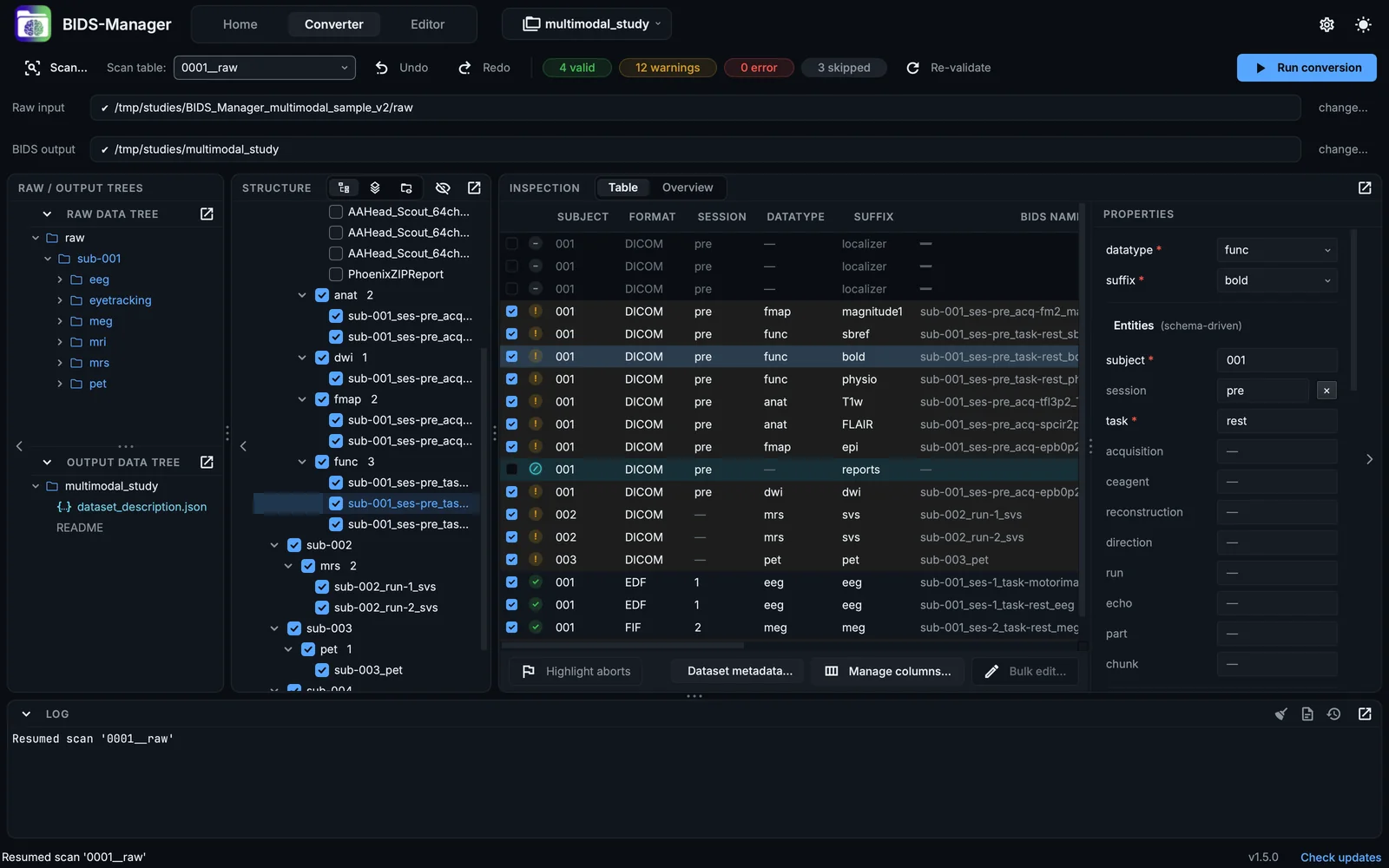
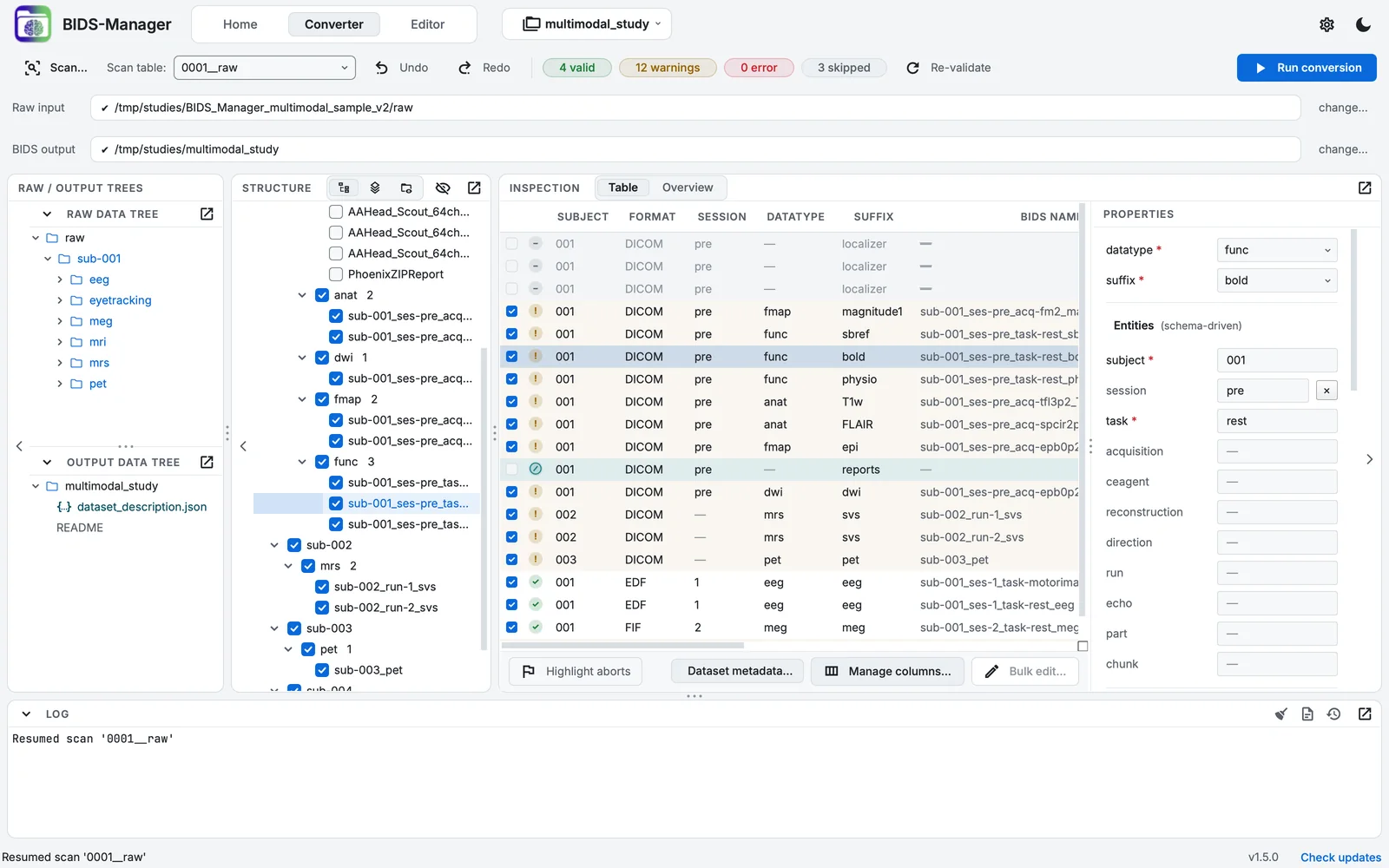
The Converter after a scan.
- The toolbar: Scan, the scan table, Undo and Redo, the counts, Run conversion
- Raw input and BIDS output
- The raw data tree and the output data tree
- Structure: the subjects, sessions and recordings the scan found
- Inspection: the table of recordings, or the Overview
- Properties of the selected row
- The Log
- Run conversion
The toolbar
| Control | What it does |
|---|---|
| Scan… | Scans the folder in Raw input. While it runs it reads Stop scanning. |
| Scan table | The project's scan tables; the newest is shown. Choose another to work on it. |
| Undo, Redo | Edits to the table, one action at a time (a change to many rows at once goes back in one step). Undo still works after reopening, but not past a conversion or a later step; Redo is lost when BIDS Manager closes. |
| The counts | Rows that are valid, have warnings, have errors, and are left out. Click the warnings, errors or skipped count to list its rows with the reasons. |
| Re-validate | Checks every row's name against the standard again. |
| Run conversion | Converts the ticked rows into the project. While it runs it reads Stop conversion. |
Raw input and BIDS output
Raw input is the folder the scan reads, with change… to choose another; it says Moved with Locate... when the scanned data is no longer where it was (Scanning raw data). BIDS output is the project, locked there.
The trees
The Raw data tree shows the raw folder; right-click (Control-click on a Mac) a DICOM file for its header. The Output data tree shows the project as it is on disk, and grows during a conversion.
The panel beside the table
Three views of what the scan found, chosen by the icons in its title; the panel takes the name of the view it shows:
| View | Shows |
|---|---|
| Structure | Subjects, sessions, datatypes and BIDS names, with a checkbox for each branch. |
| Recordings | Each kind of recording across subjects, one checkbox to leave a kind out everywhere. |
| BIDS preview | Every file the conversion will write, and the predicted content of each (What the BIDS preview predicts). |
Hide rows left out hides the unticked rows in Structure and Recordings; they stay in the table. Right-click in Structure or Recordings for the table's row menu.
Inspection: Table and Overview
Table shows the scan table: one row per recording, its columns described in Scan table columns. Click a row to see it in Properties; double-click a cell to edit it; right-click for the row menu (preview, DICOM header, new subject numbers, the classifier's alternatives, fieldmap targets, eye-tracking pairing). Under the table:
| Button | What it does |
|---|---|
| Highlight aborts | Marks rows that look like aborted, repeated runs. |
| Dataset metadata… | The metadata no file records (Metadata you provide). |
| Manage columns… | Shows and hides the columns, with a note on what each holds. Drag a column's header to move it. |
| Bulk edit… | One value for one column across the selected rows. |
Overview counts subjects, sessions and recordings, lists what is worth a look (with Show, which opens the table on its rows), and draws a grid of subjects by kind of recording (Checking before you convert).
Properties
The selected row in detail: its datatype, suffix and entities (each editable, checked against the standard when you press Return on macOS, Enter on Windows and Linux or leave the field), the predicted path, Preview the image, Preview the recording or Preview the spectrum, the classifier's Why this name, the fieldmap's Corrects these runs, and the metadata for this recording alone, below the dataset's.
The Log
What each scan and conversion did, step by step. The history icon in its title lists the logs of earlier runs (the newest 200), kept in the project's .bidsmgr/logs/.