
Guides
Converting MRI
Convert a small Siemens study with two participants, one of them scanned twice, with fieldmaps, functional runs and their physiological logs, diffusion, and the series a scanner adds that are not data.
The sample
Three folders of DICOM files, one per visit, named by the scanner's series identifiers:
MRI_sample_data_neuroimging_unit_oldenburg_2/
├── OL_0001/   a T1w, two fieldmaps, two BOLD runs (sparse and rest)
├── OL_0002/   a fieldmap, a multiband BOLD run with its single-band reference and physiological log
└── OL_0003/   a T2-weighted SPACE, two runs of one task and a practice run, each with a reference,
               a diffusion run with its two reversed-phase references
The series are named in the convention many sites use: ses-pre_T1w, task-dmaging_run-01_bold. BIDS Manager reads those names, but it also reads how each series was acquired, and decides from both.
Scan
Step 1. Create a project and scan
On Home, create a dataset named mri_study. In the Converter, choose the sample folder in Raw input and click Scan…. The scan took 21.8 seconds here.
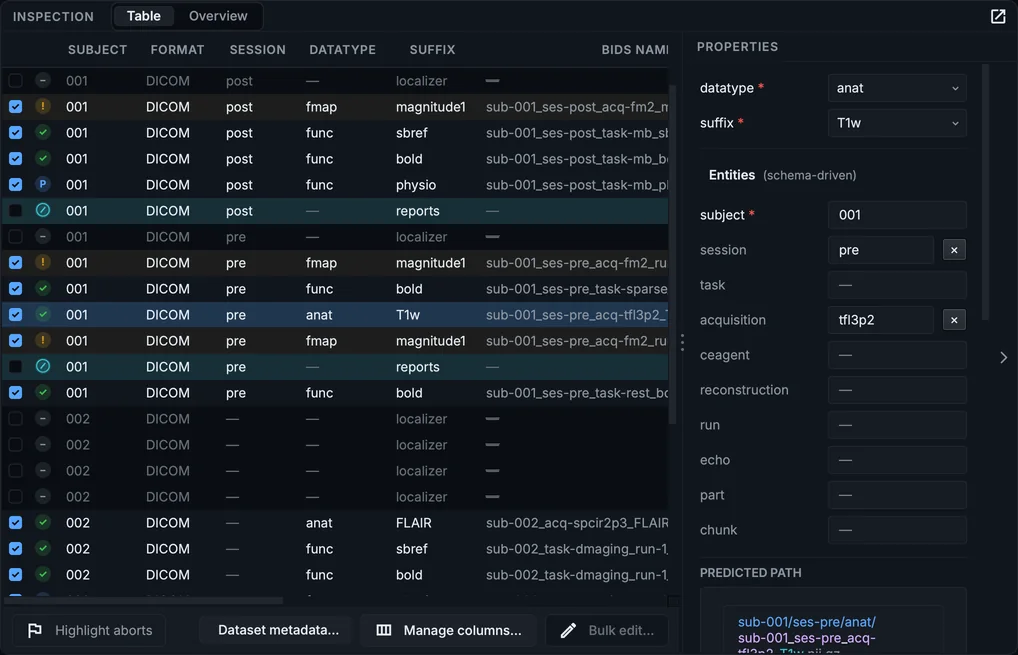
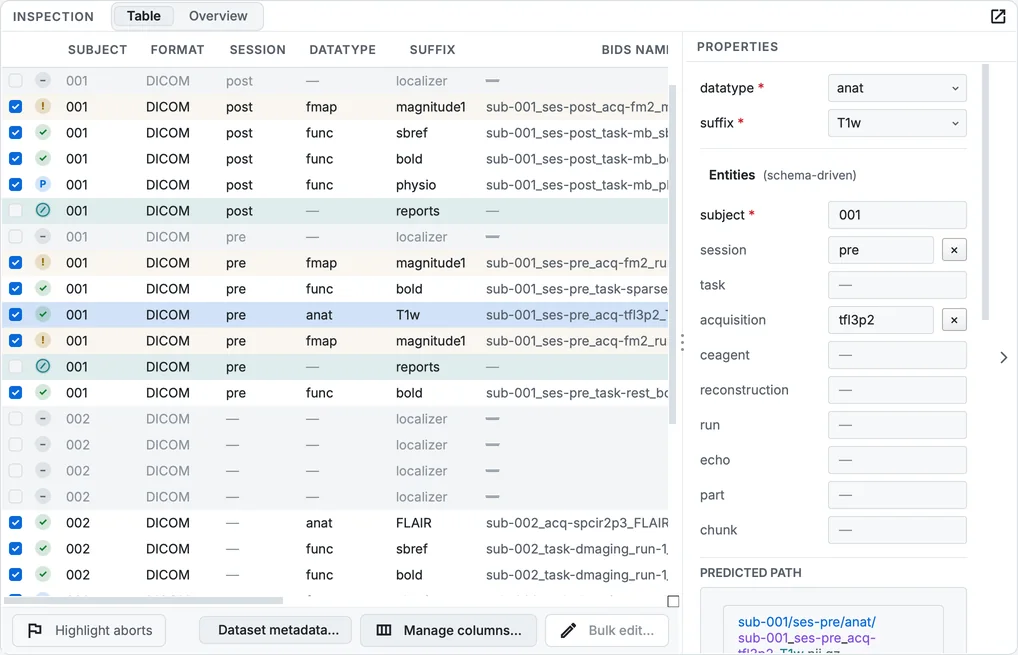
The scan table after the scan.
Step 2. Read what it found
The table has 33 rows: 21 to convert, and the rest left out on their own, with the reason in the issues column (show it with Manage columns…):
| Left out | Why |
|---|---|
AAHead_Scout_…, localizer_… |
Scout images, for positioning; BIDS has no place for them. |
PhoenixZIPReport |
The scanner's protocol report: no image in it. |
Tick a row to convert it anyway, if your study needs it.
Subjects and sessions
The folders OL_0001 and OL_0002 carry the same patient identifier, so the scan makes them one subject, sub-001, with two sessions; it takes the labels pre and post from the series names. OL_0003 is another person, sub-002, with no session.
Step 3. Look at the Overview
Click Overview at the top of the Inspection panel. It points out two things worth a decision:
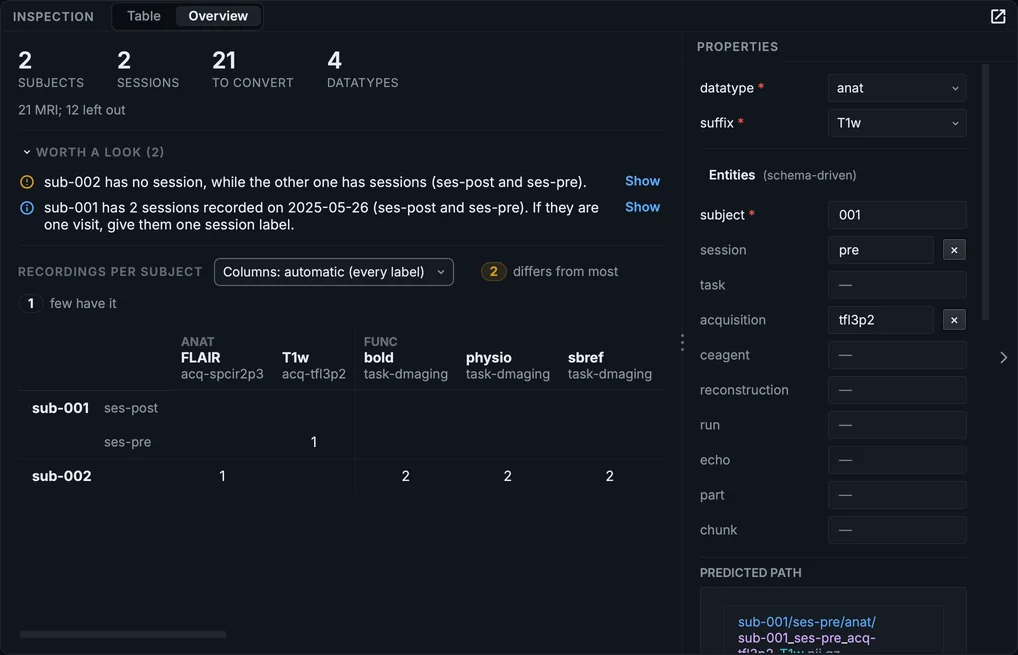
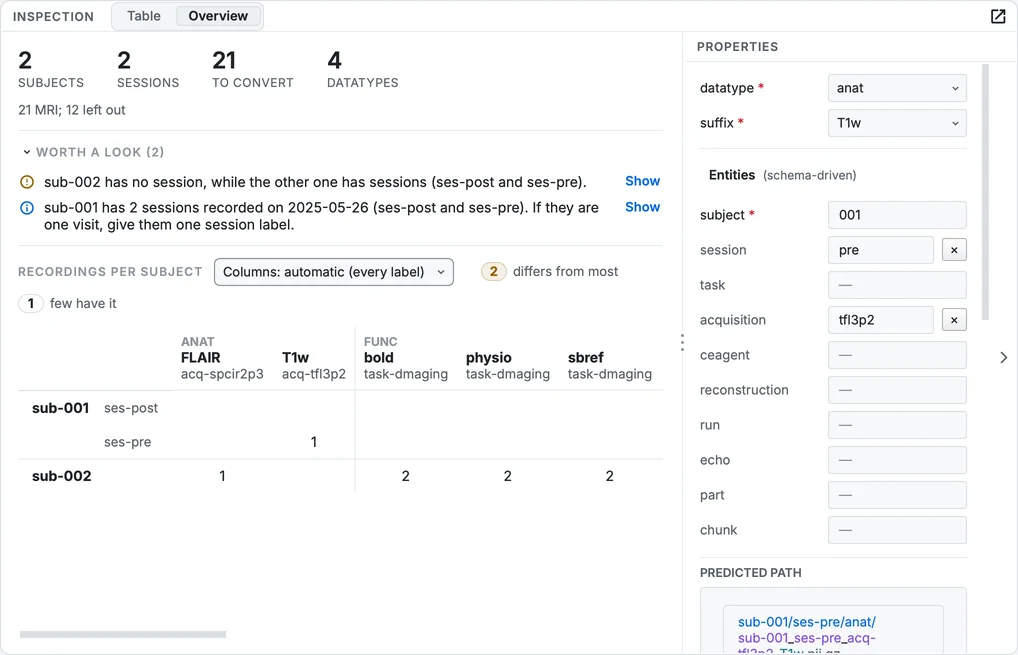
The Overview of the MRI sample.
sub-002has no session whilesub-001has two. BIDS allows it, but a dataset is easier to use when every subject has the same structure. Ifsub-002belongs to theprecondition, set its session toprewith Bulk edit…; if it does not, leave it.- Both sessions of
sub-001were recorded on the same day. If they are one visit, give every row ofsub-001one session label; if they are two conditions of one day, as here, keep them.
The course explains the same decisions on its own sample: The scan table.
Fieldmaps
Session pre has two fieldmaps and two BOLD runs. Each fieldmap is written as three files (two magnitudes and the phase difference) and linked to the runs it corrects: runs with the same shim settings first, otherwise by time, each run to the last fieldmap acquired before it (or the first one after it, if none came before).
Step 4. Check which runs a fieldmap corrects
Select the row ses-pre_run-02_fmap. Corrects these runs in Properties shows the run it will be linked to, ticked, and why.
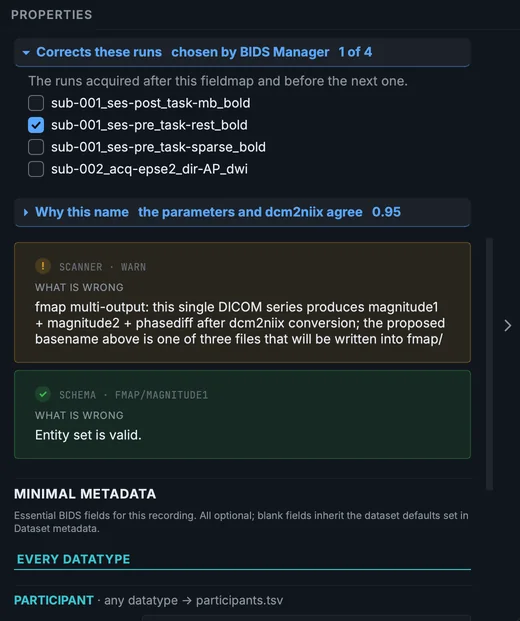
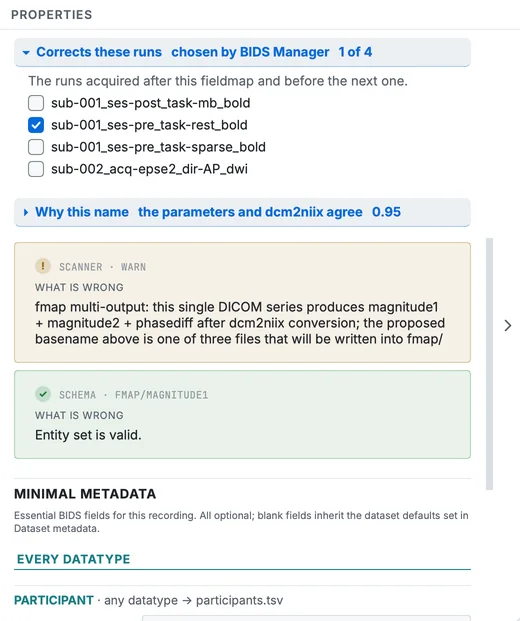
Properties of the second fieldmap of session pre.
Tick or untick a run to choose yourself. Only tick runs of the same subject and session: the list also offers others (see Known issues).
The diffusion run of sub-002 has two reversed-phase references (acq-15b0_dir-ap and acq-15_dir-pa); both become fmap/…_epi files linked to the diffusion run, which is what QSIPrep and fMRIPrep read. Why both links are written, and what each version of fMRIPrep reads: Fieldmap links and fMRIPrep.
Physiological logs
The series …_PhysioLog hold what the scanner recorded during a run. Here they hold only the trigger pulses; on scanners where a pulse oximeter and a breathing belt are attached they hold those too. Each becomes a _physio.tsv.gz beside its run, with a sidecar giving the sampling rate and the start time. They open in the Editor as tables, and Visualize draws them (Viewing data).
Describe and convert
Step 5. Give the dataset's authors and licence
Click Dataset metadata…, fill Authors and License in the dataset description, and, under the template for func bold, TaskDescription for each task you know. Click Save (Metadata you provide).
Step 6. Convert
Click Run conversion. The sample converted in 10.3 seconds, metadata and validation included, into 69 files.
Validate
Open the Editor and click Validate dataset. The sample reports 30 files valid, 70 warnings and 0 errors.
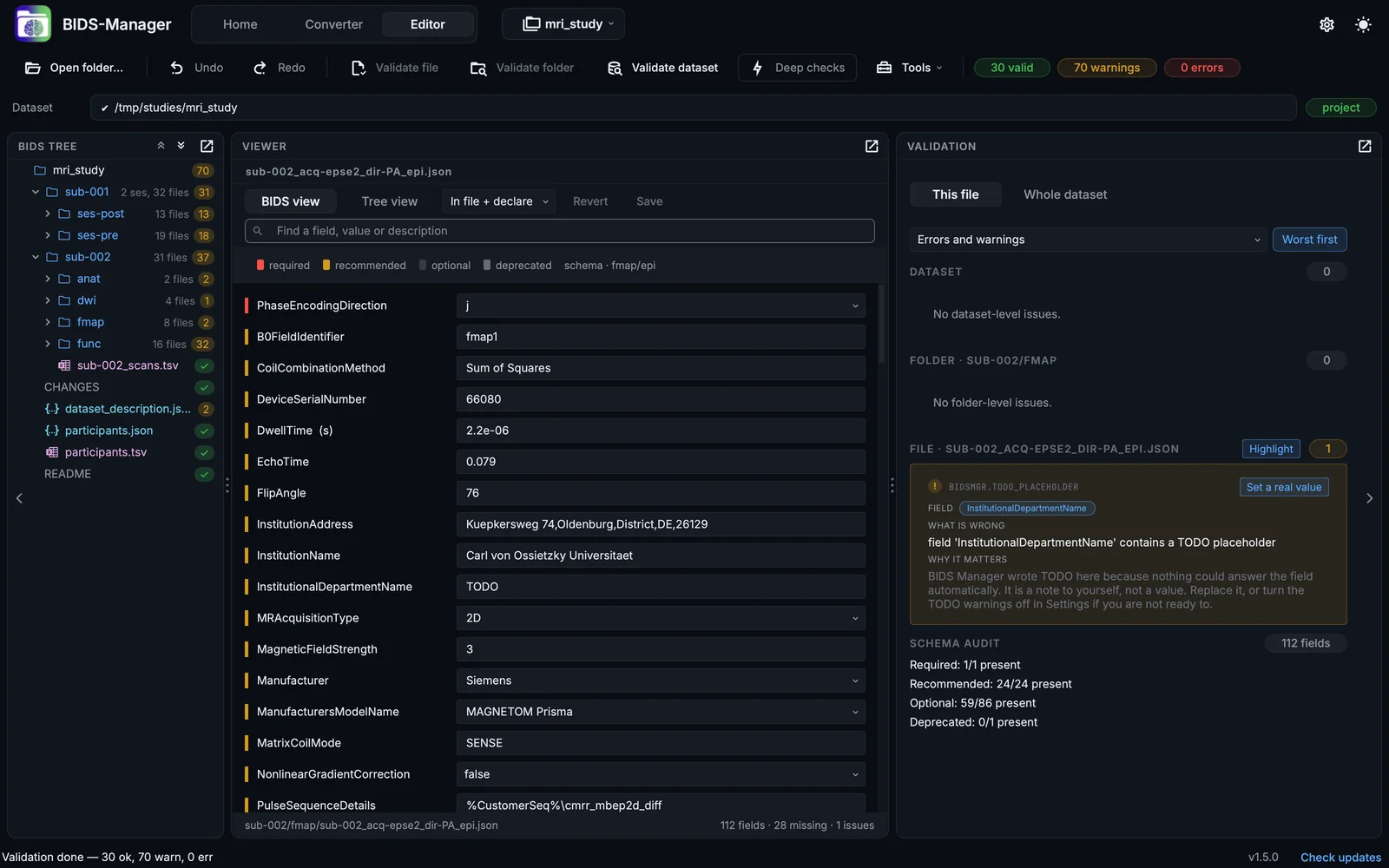
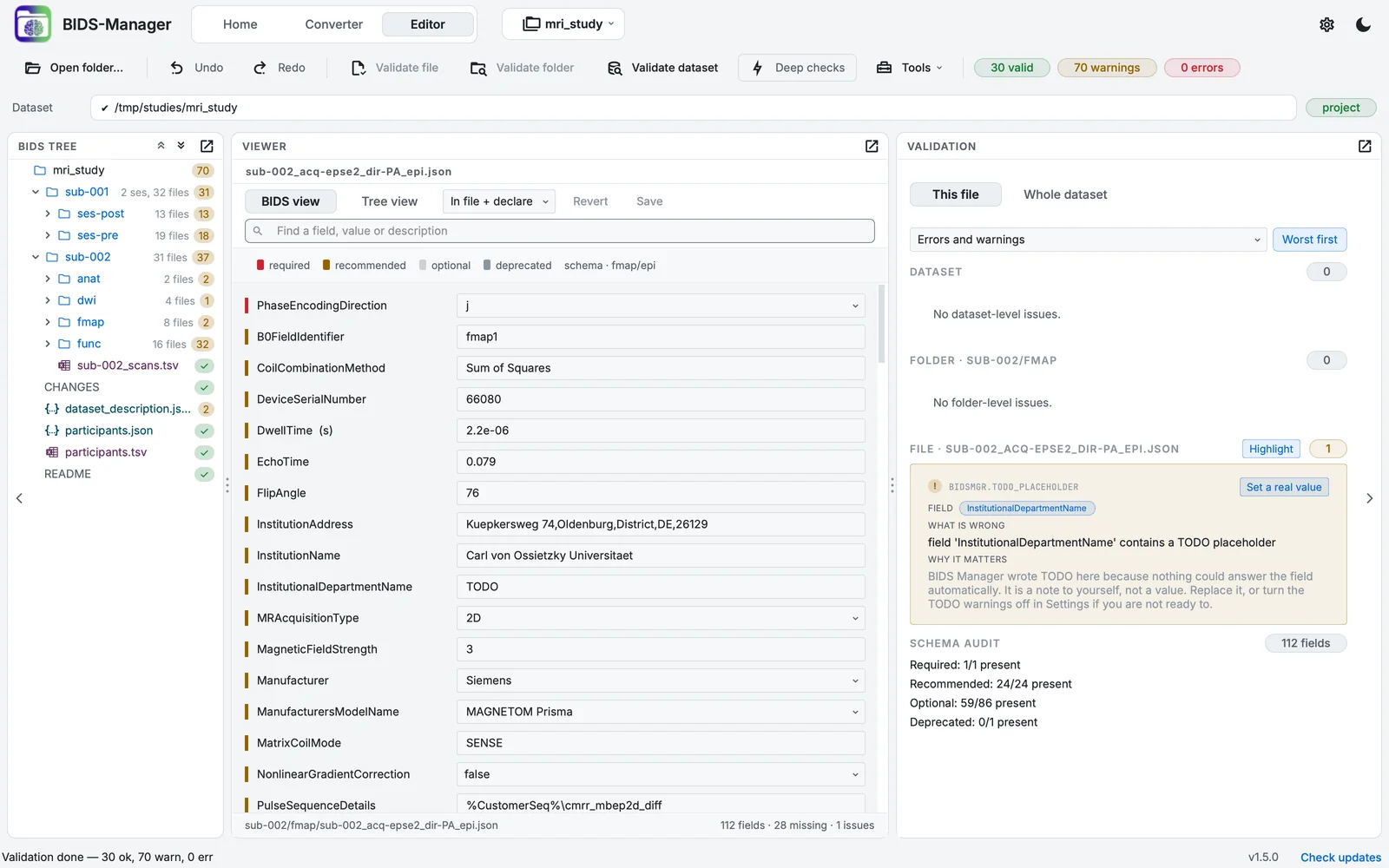
The converted sample in the Editor, validated.
The warnings are of three kinds:
| Warning | What to do |
|---|---|
| A TODO placeholder (49 in 25 files) | Fill what you know: the department, the task descriptions and instructions. |
EVENTS_TSV_MISSING on a task run |
A task run should have an events.tsv. Add the events of your task, or ignore it for a resting run. |
B0_FIELD_SOURCE_RECOMMENDED |
A run without a fieldmap, in a subject that has fieldmaps: the functional runs of sub-002, whose only fieldmaps are for its diffusion run. Nothing to do unless a fieldmap covers them. |
In your own MRI data
- Check the names the scan proposes, especially for sequences your site names its own way. The confidence column and Why this name in Properties show how sure the classifier is and why (The classifier).
- Use scan rules for a site convention you meet in every study: leave out a sequence by name, or name one yourself (Settings > Scan rules).
- Check the fieldmap links before converting, in Properties.
- Repeated series of one task get run numbers; an aborted run is still there, unticked or not: the Highlight aborts button under the table marks the likely ones.
- Deface before sharing.